
Setup CentOS for IBM QRadar CE Integration
/ 6 min read
Table of Contents
Overview
This is a guide to setup CentOS for IBM QRadar CE Integration with VMware Workstation and send logs to QRadar CE.
CentOS in this setup will act as a client that will be monitored by QRadar CE.
Prerequisites
Setup
1. Open VMware Workstation and click Open a Virtual Machine
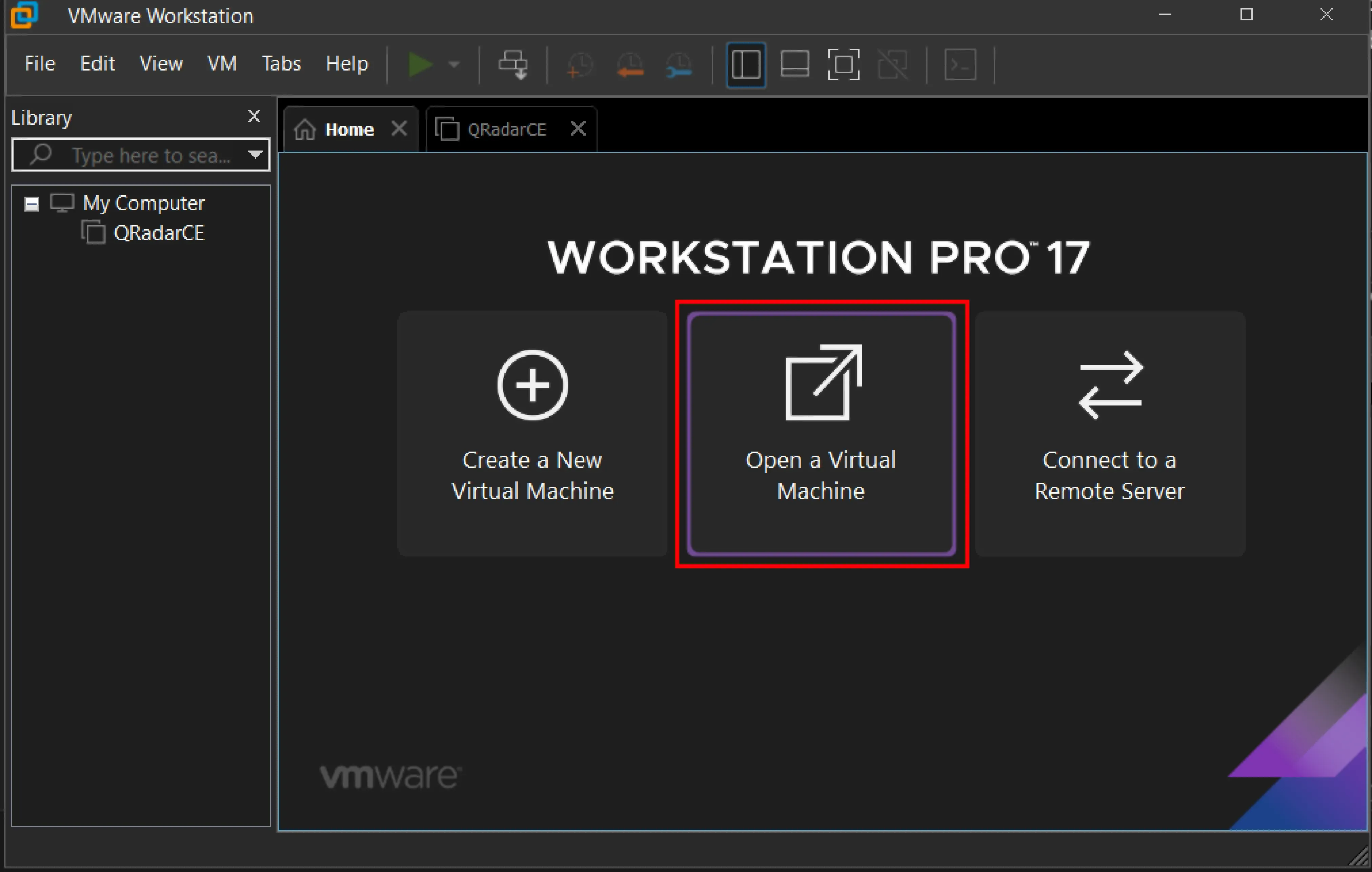
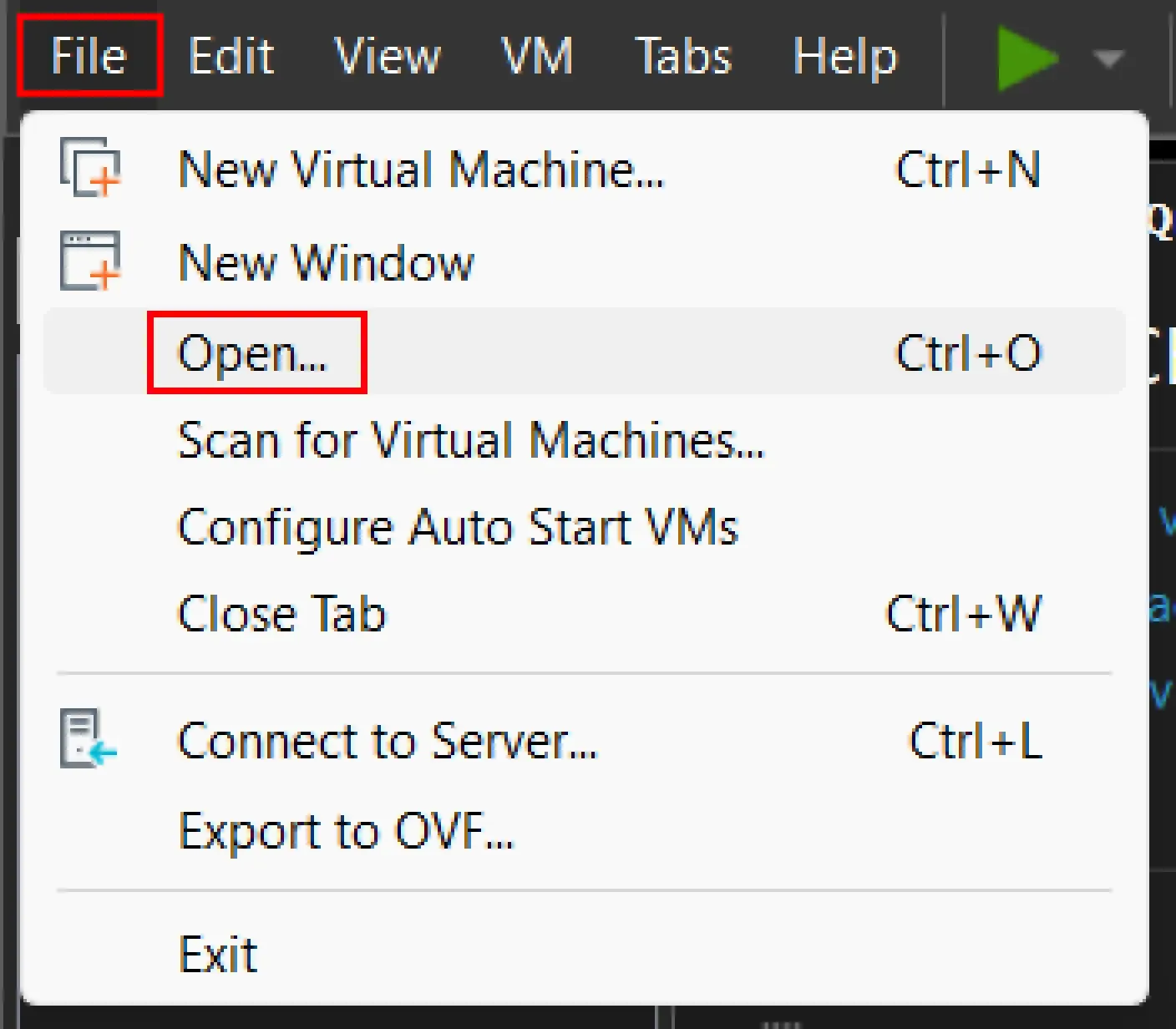
or you can click File > Open… or use the shortcut Ctrl + O
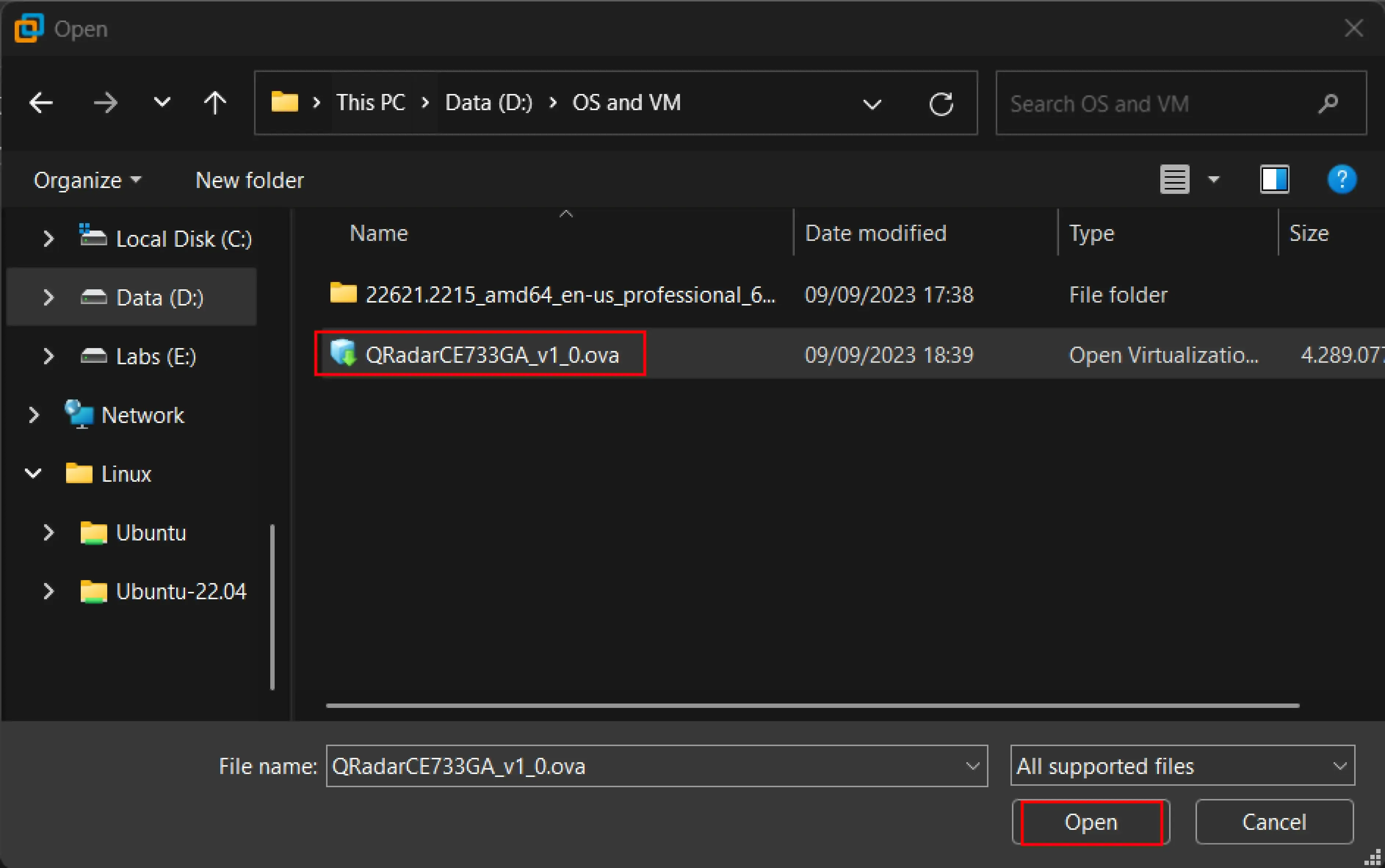
2. Select the QRadar CE ISO file and click Open
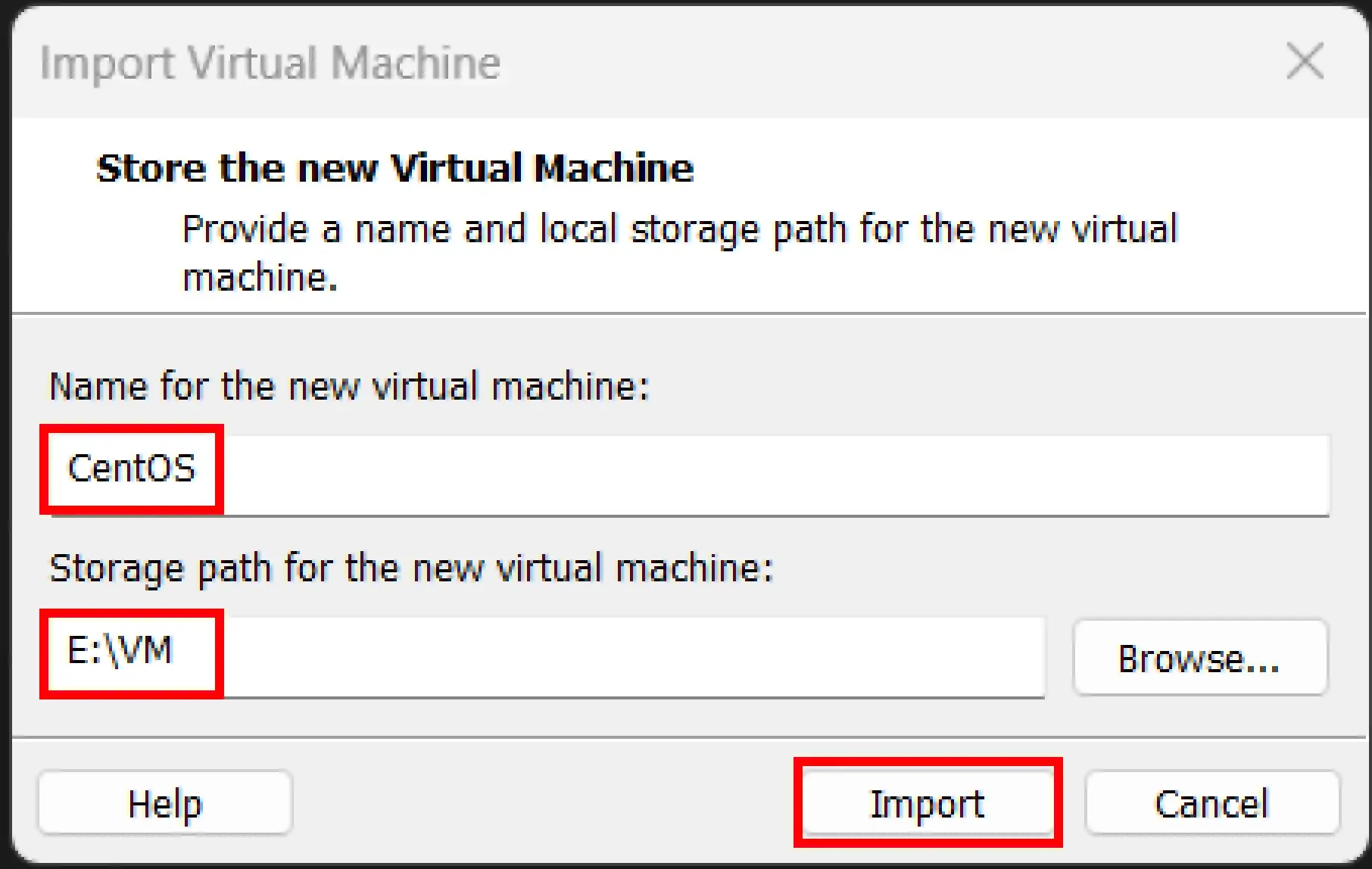
3. Name the VM and select the location to save the VM, then click Import
4. Wait for the import to complete then click Edit virtual machine settings
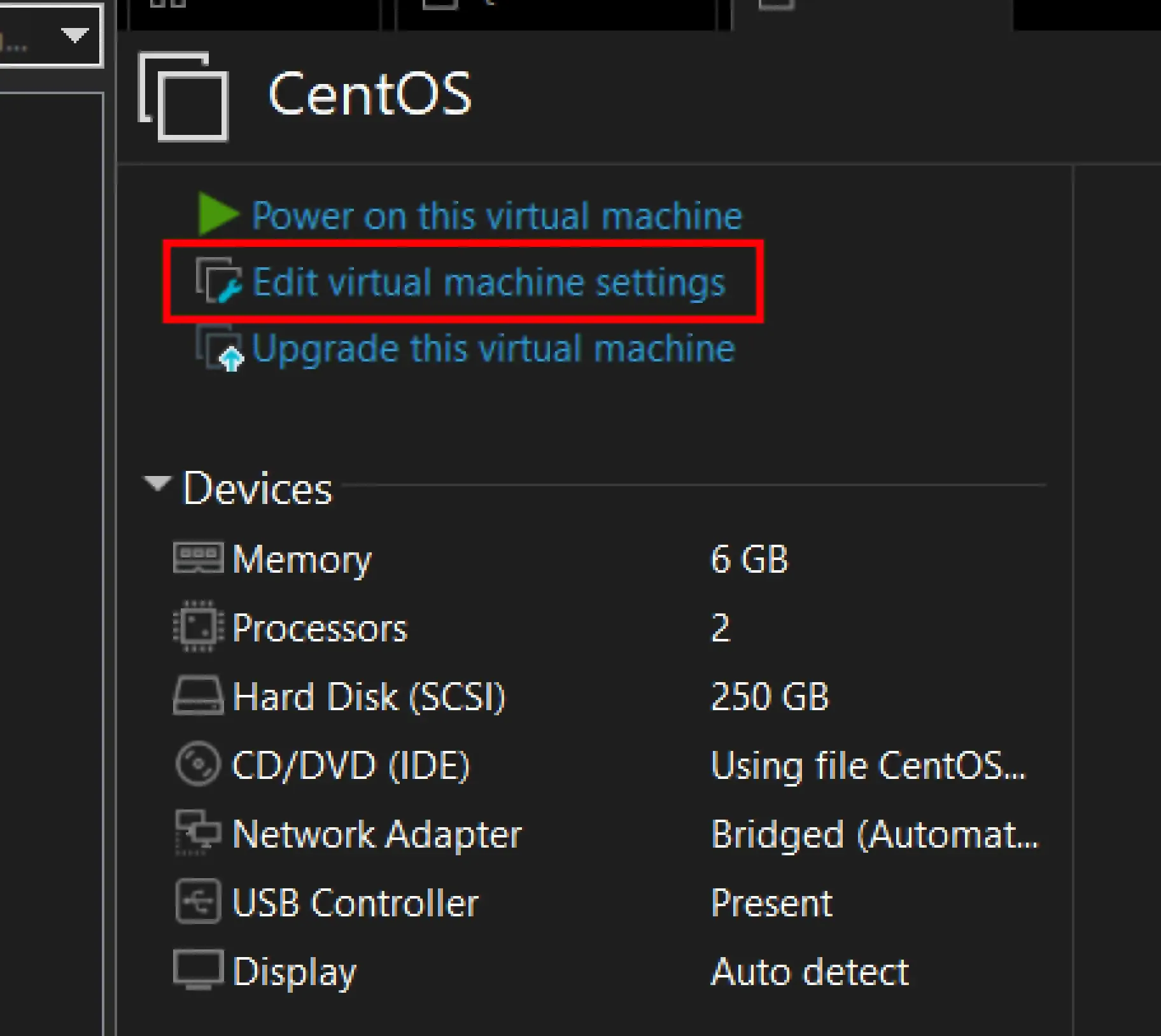
5. Change the virtual machine settings as needed
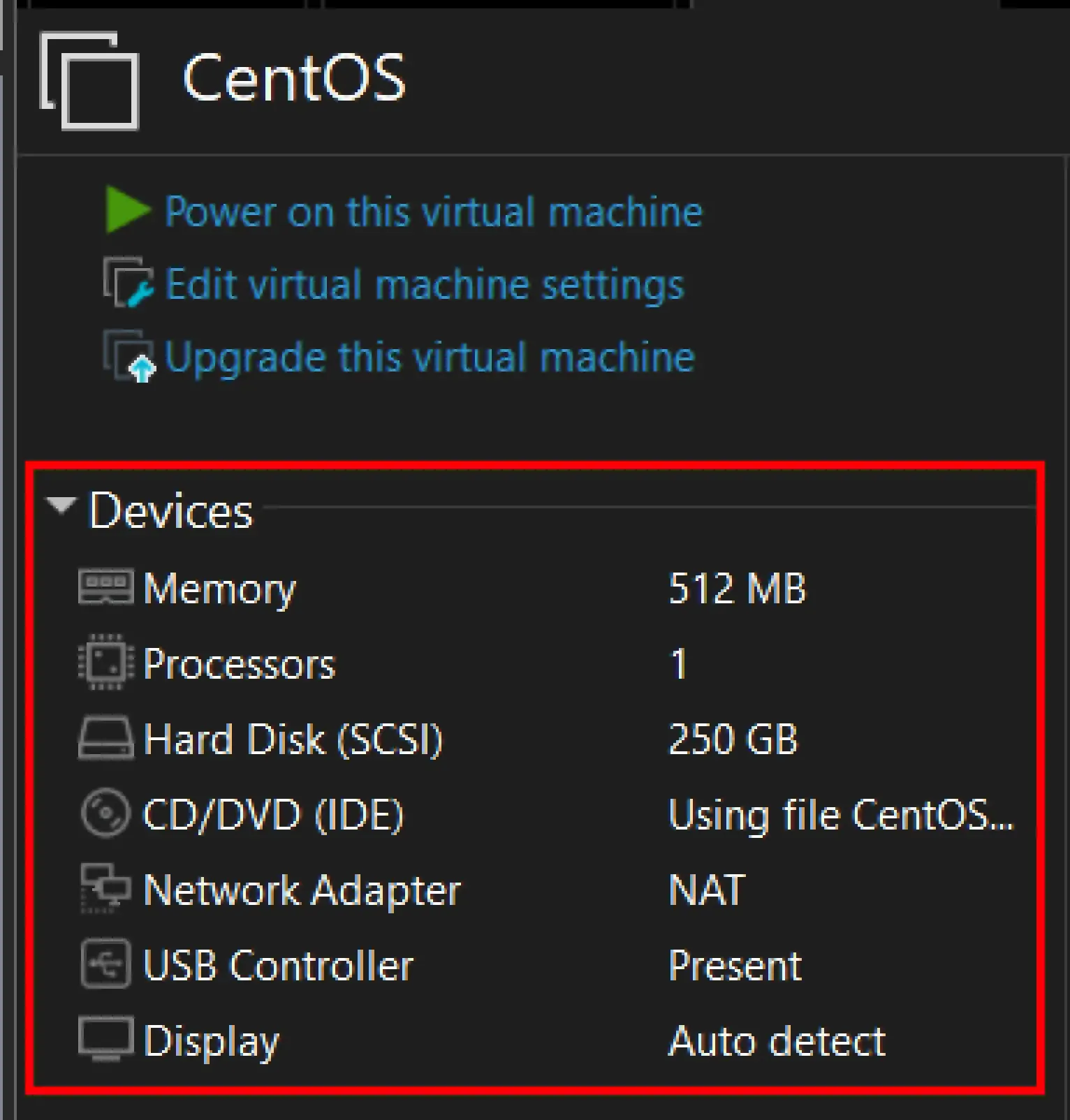
In my setup, I changed the following settings:
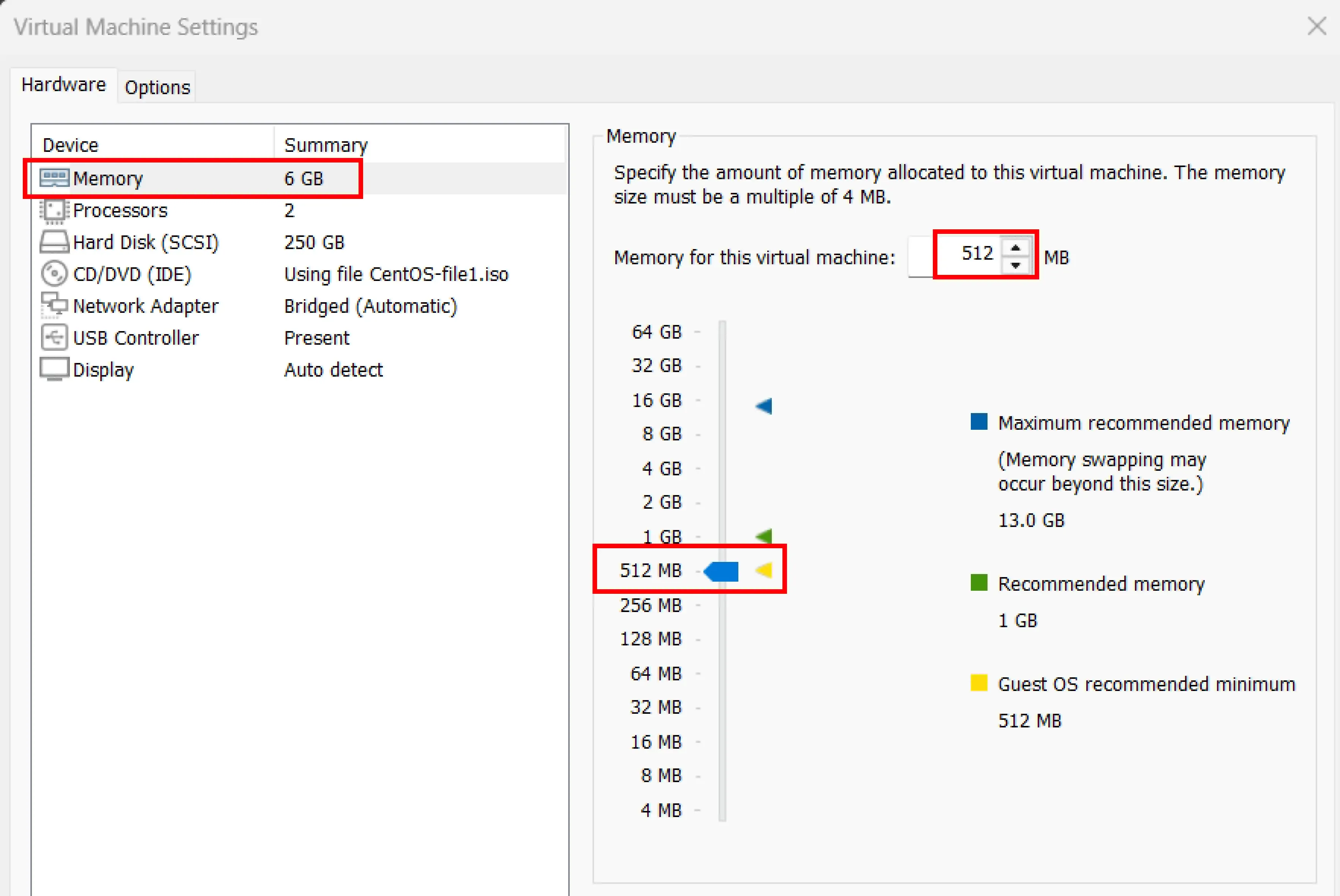
- Memory: 512 MB
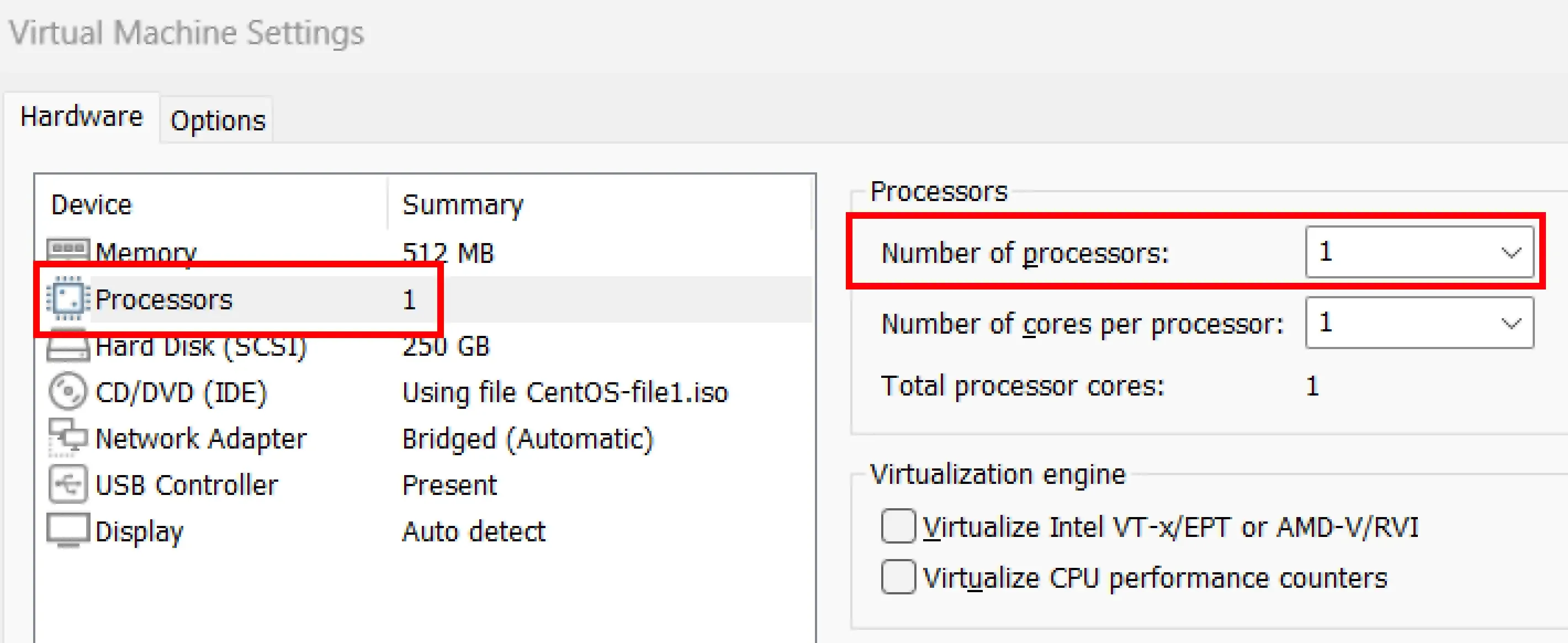
- Processors: 1
- Network Adapter: NAT
Change the memory from 6 GB to 512 MB (or as needed)
Change the processors from 2 to 1 (or as needed)
Change the network adapter from Bridged to NAT, then click OK
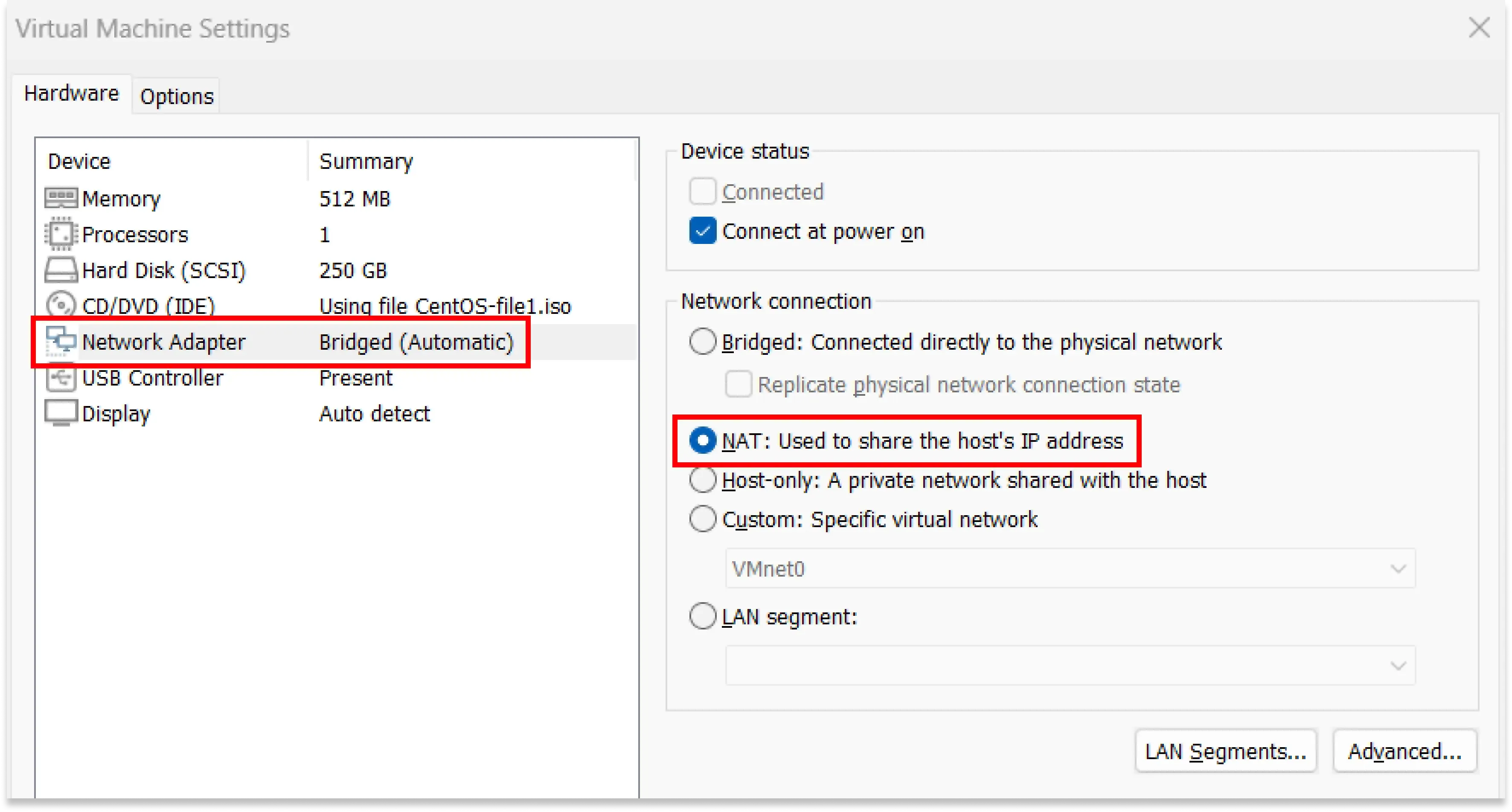
So the final settings will be like this:
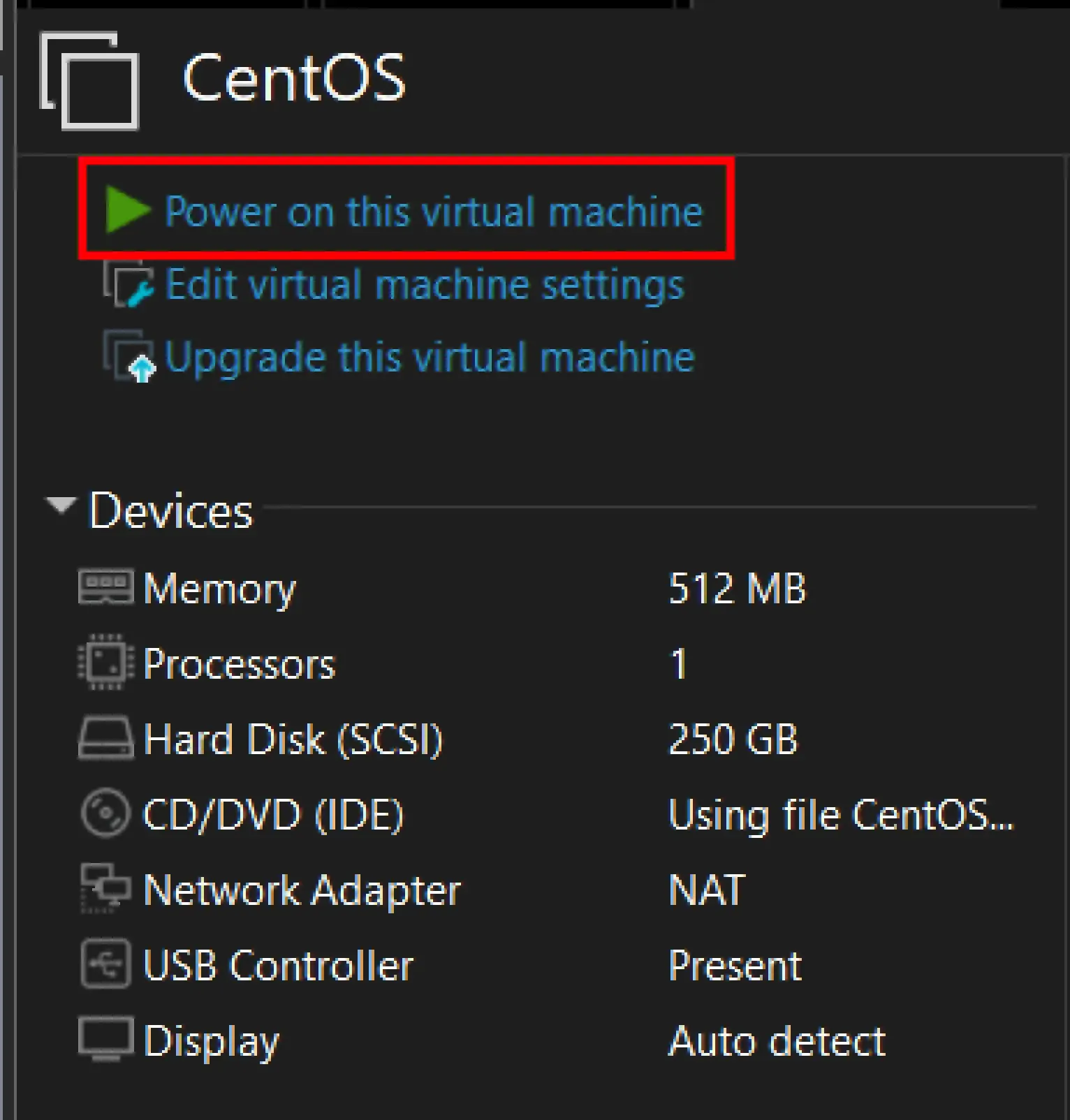
6. Power on the VM
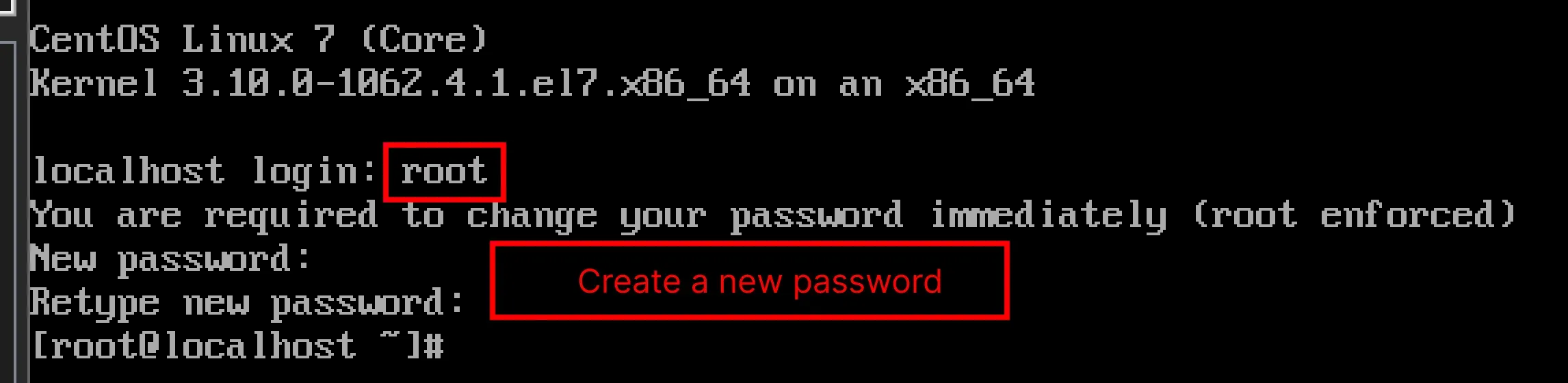
7. Wait for the VM to boot up and login with the root user and create a new password
8. Configure the network
Type nmtui to open the Network Manager Text User Interface

- Select Set system hostname and press Enter
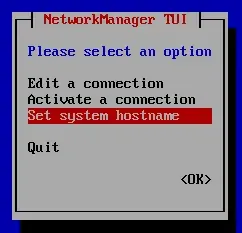
- Set the hostname, in my setup I set it to
centosand press Enter
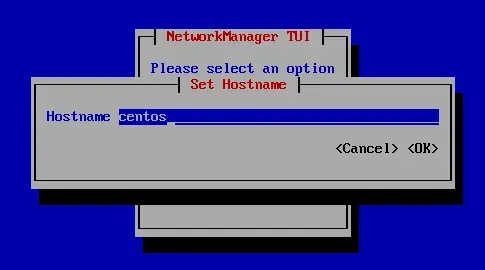
- Select OK and press Enter
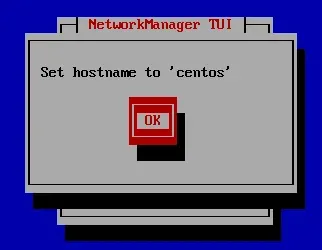
- Select Quit and press Enter
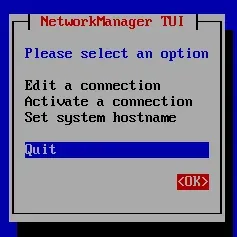
-
type
clearto clear the screen -
type
bashto refresh the bash shell, so the hostname will be updated
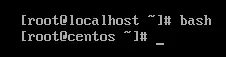
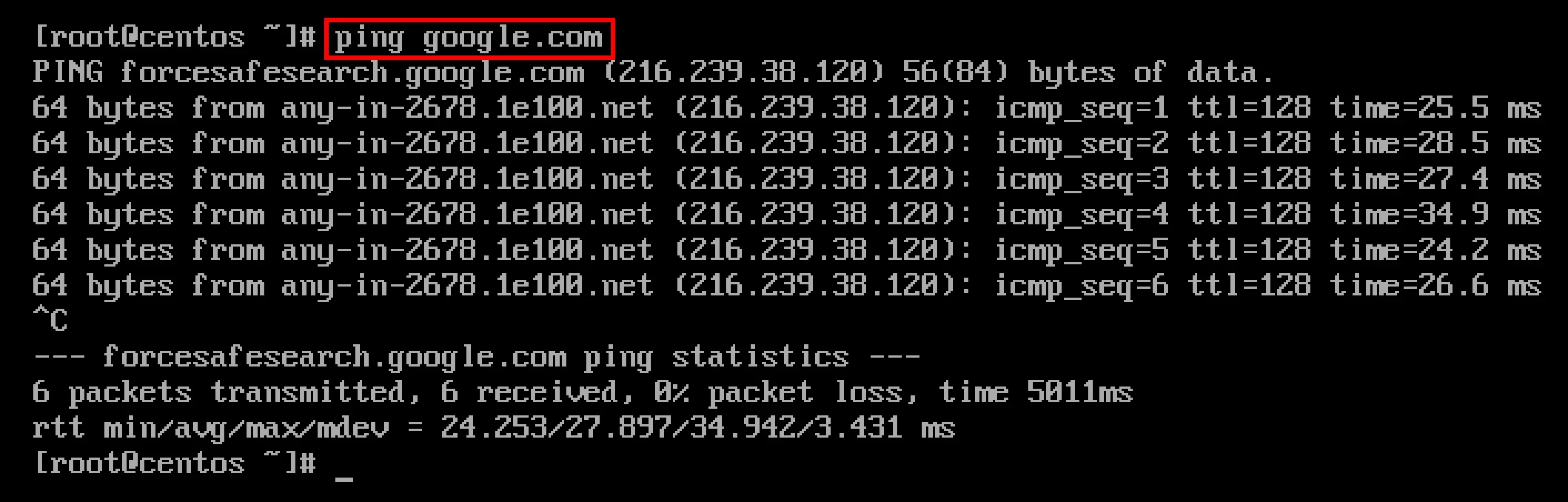
- Check the connection by typing
ping google.comand press Enter
- Check the IP address by typing
ip -br addrand press Enter

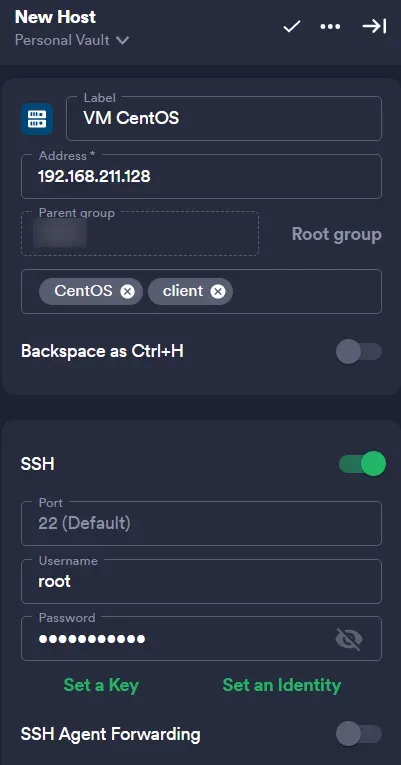
In my case, the IP address is 192.168.211.128
9. SSH to the VM centos
You can use PuTTY, Windows Terminal, Windows Subsystem for Linux (WSL), MobaXterm or any other SSH client you want.
In my case, I use Termius.
- Set the details as needed
- Type
ssh root@<IP address>and press Enter - Type password that you created earlier and press Enter
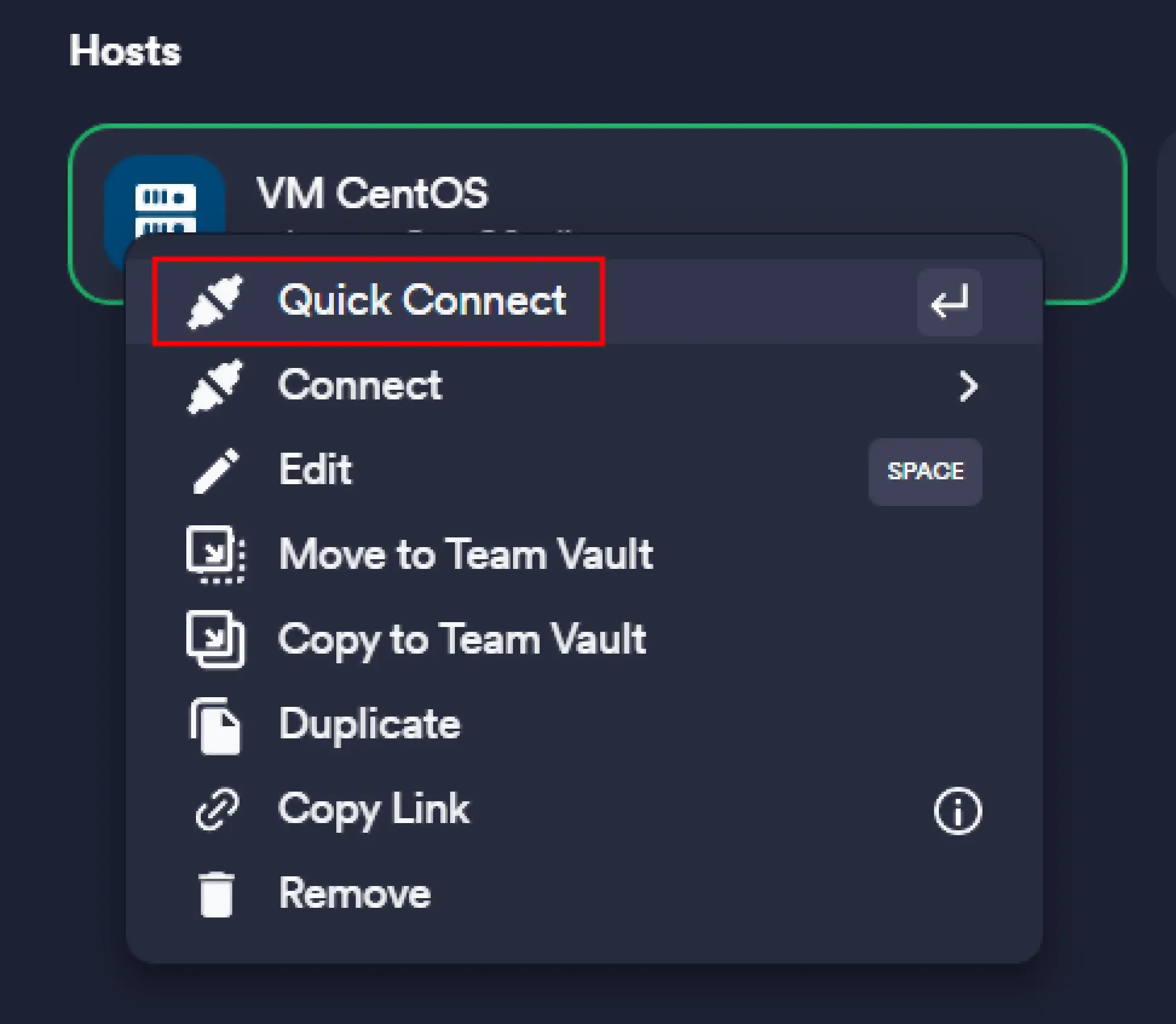
- In Termius you can connect to the VM using Quick Connect feature, so you don’t need to type the IP address and password every time you want to connect to the VM.
- Voila! You are now connected to the VM

10. Install the required packages and dependencies
- Type
yum install auditand press Enter

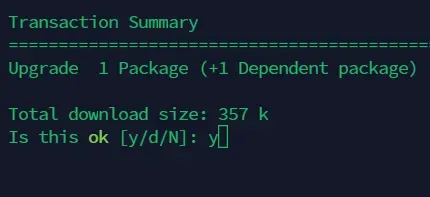
- Type
yif prompted and press Enter
11. Configure the auditd service
- Start the auditd service by typing
service start auditdand press Enter - If you get a warning, just type
systemctl daemon-reloadand press Enter - Type
service start auditdand press Enter again
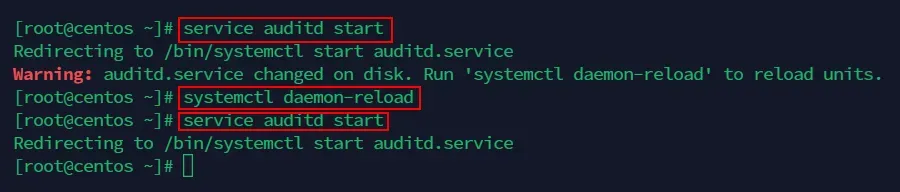
- Type
chkconfig auditd onand press Enter to enable the auditd service

- Type
service auditd statusand press Enter to check the status of the auditd service
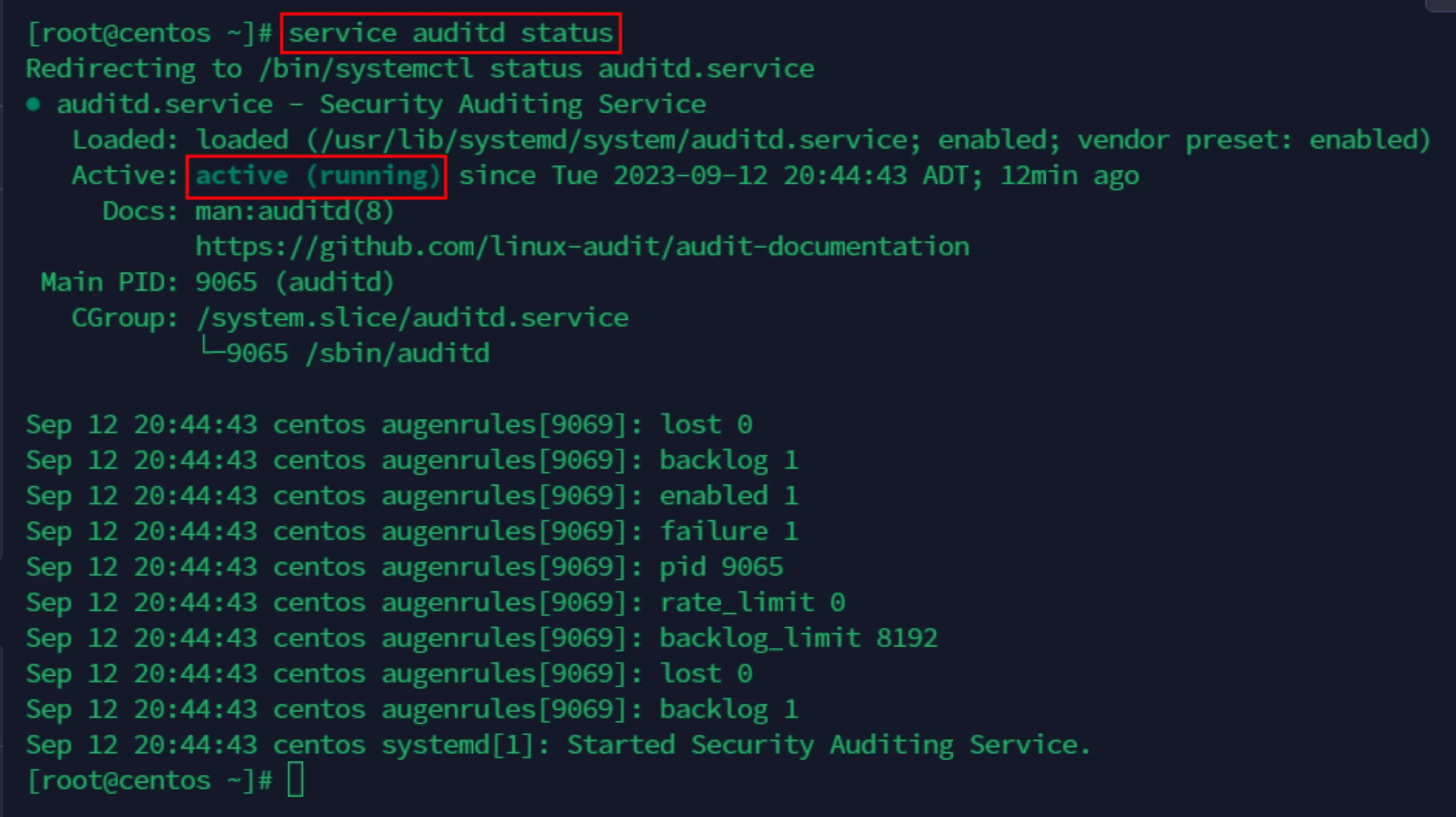
- If you encounter an error like this:

- Just type
systemctl start auditdand press Enter to start the auditd service.

12. Configure the audit rules
- Type
vi /etc/audisp/plugins.d/syslog.confand press Enter to edit the syslog.conf file

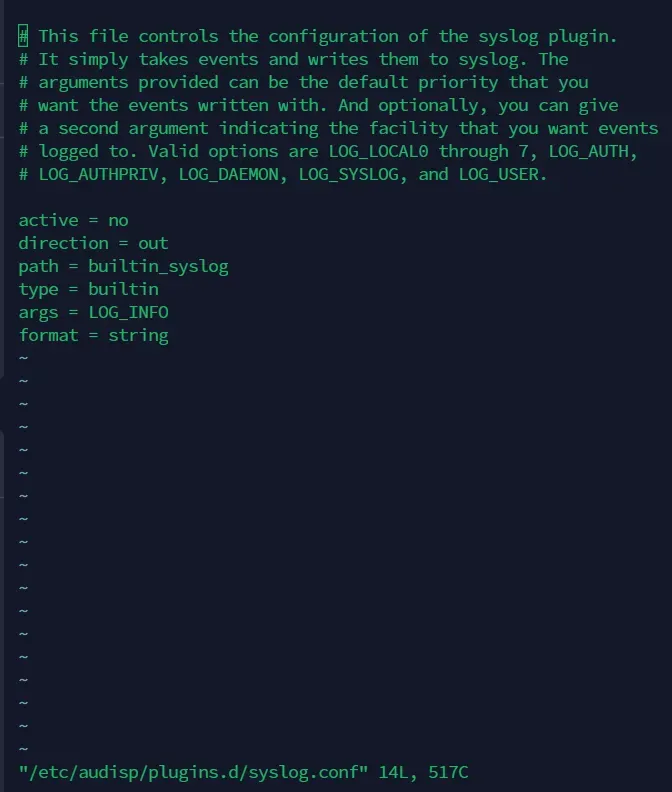
-
Press
ito enter the insert mode -
Change the content of the
syslog.conffile to this:- active = yes
- direction = out
- path = builtin_syslog
- type = builtin
- args = LOG_LOCAL6
- format = string
-
So the final content of the
syslog.conffile will be like this:
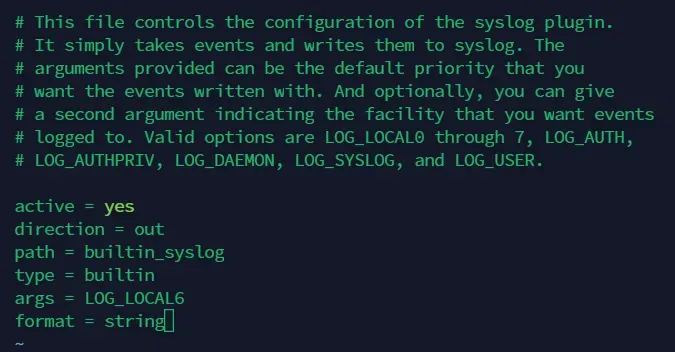
- Press
Escto exit the insert mode - Type
:wqand press Enter to save and exit the file
13. Configure the rsyslog service
- Type
vi /etc/rsyslog.confand press Enter to edit the rsyslog.conf file

- Press
shift + Gto go to the end of the file - Press
Oto enter the insert mode and add this line at the end of the file:*.* @<IP_ADDRESS_QRADAR>:514
- Check the IP address of the QRadar CE VM, in my case the IP address is
192.168.211.129
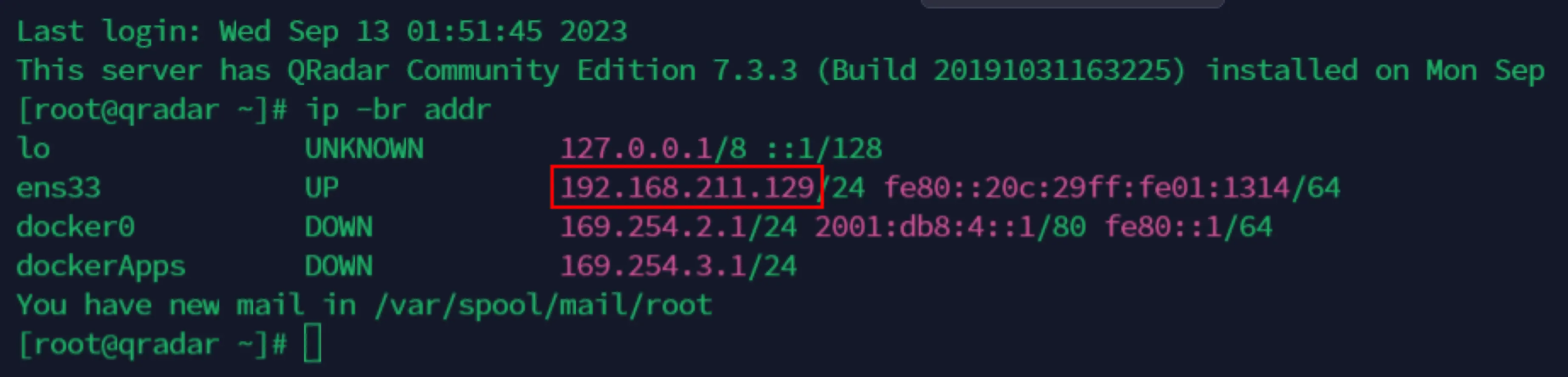
- Like this:
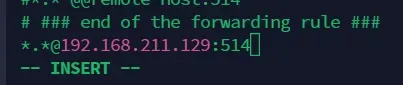
- Press
Escto exit the insert mode - Type
:wqand press Enter to save and exit the file
14. Restart the auditd and rsyslog services
- Type
service auditd restartand press Enter to restart the auditd service

- Type
systemctl restart rsyslogand press Enter to restart the rsyslog service

15. Open the QRadar CE Dashboard on your browser and add a filter
- Open your browser and go to
https://<IP_ADDRESS_QRADAR> - Login with the username
adminand your password - Click Log Activity and click Add Filter
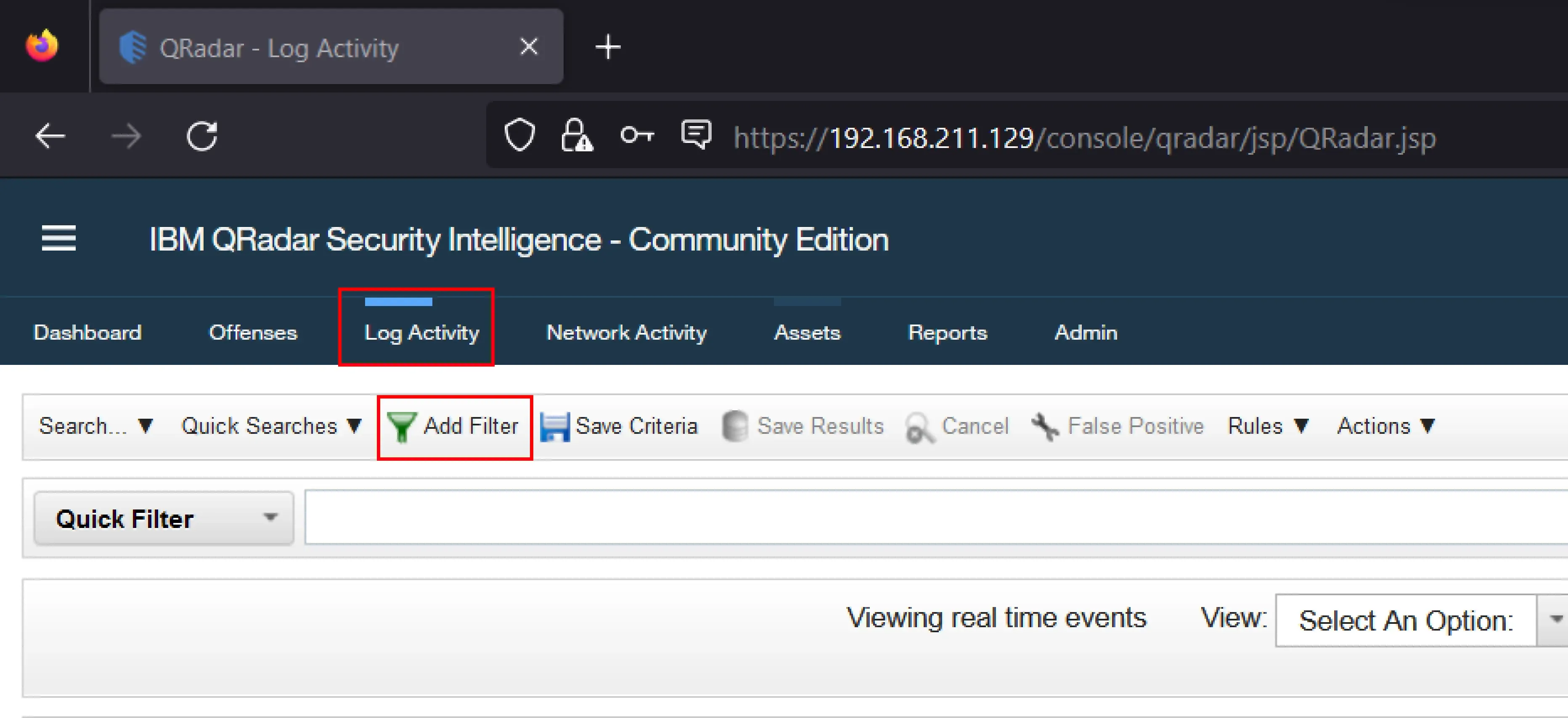
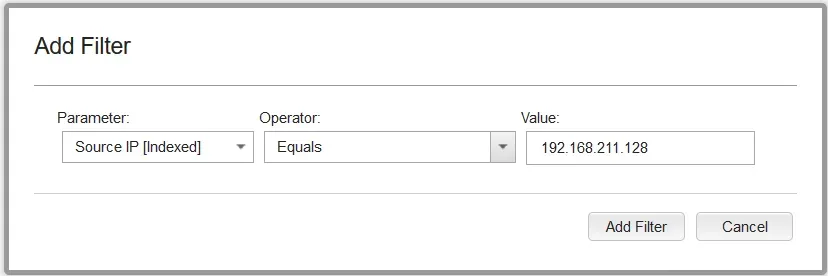
- Add a filter with the following details:
- Parameter:
Source IP [Indexed] - Operator:
Equals - Value:
<IP_ADDRESS_CENTOS>, in my case the IP address is192.168.211.128
- Parameter:
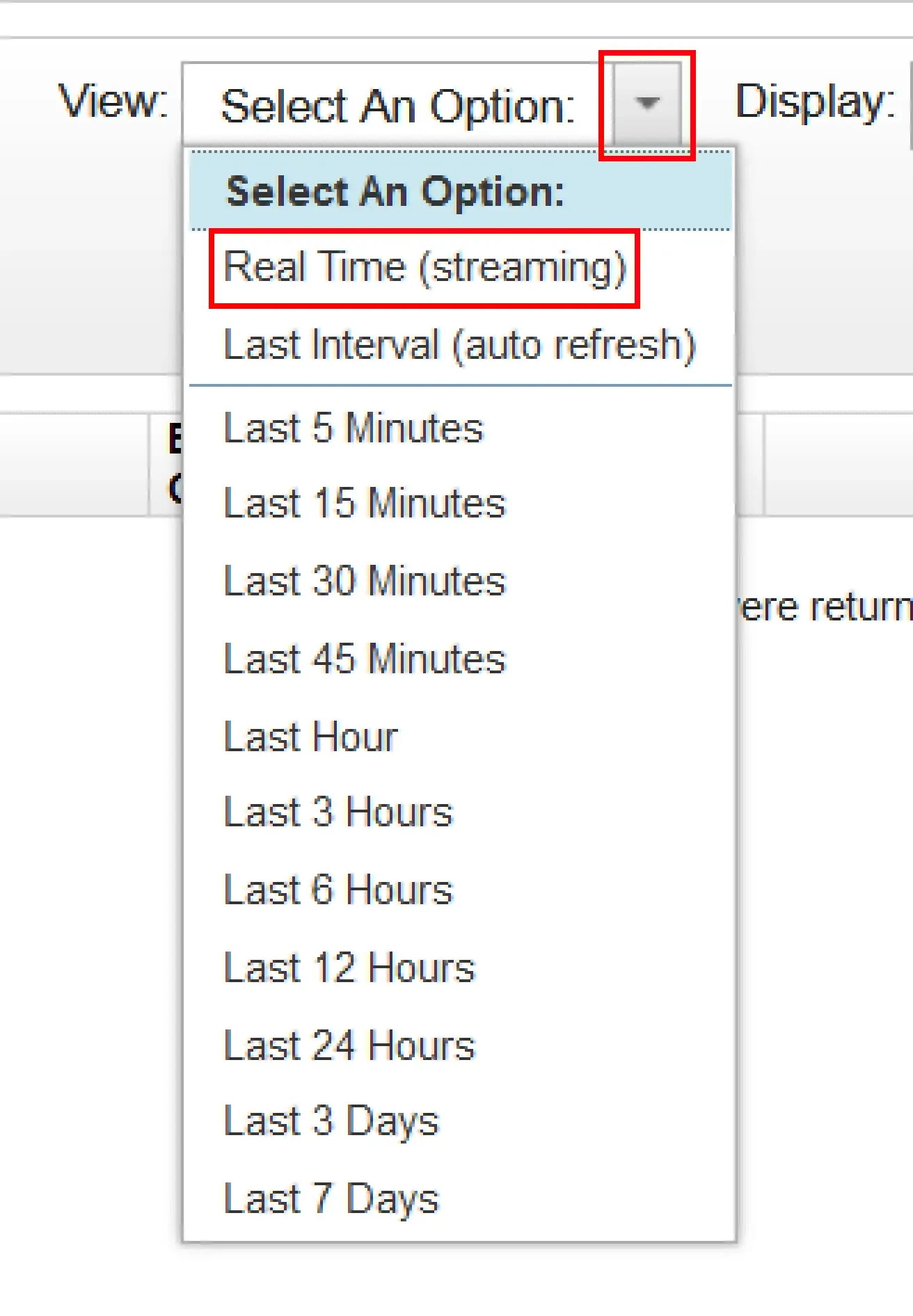
- Change the View to Real Time (streaming)
16. Test the log with add user in the centos VM
- Type
useradd testand press Enter to add a new user
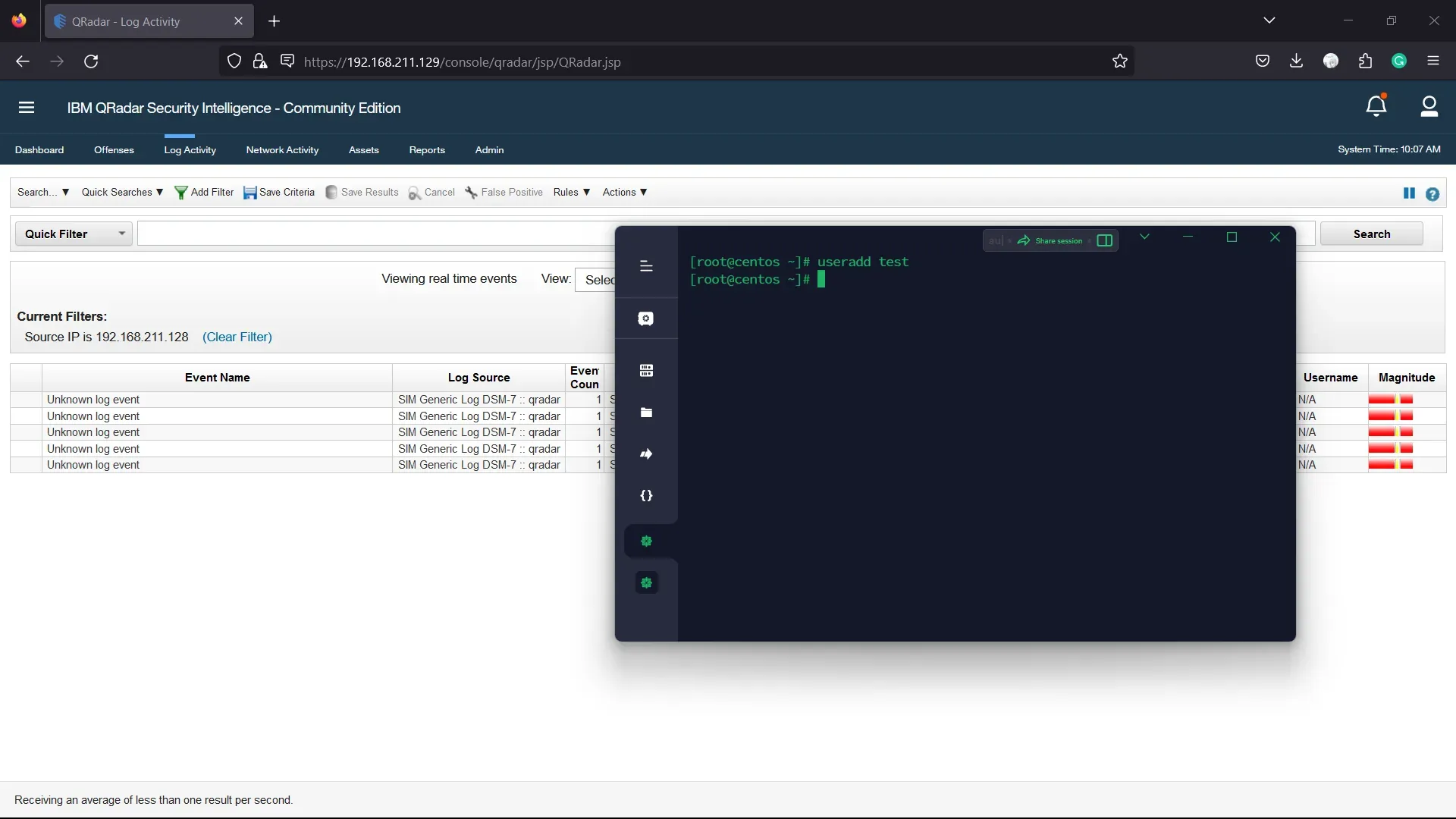
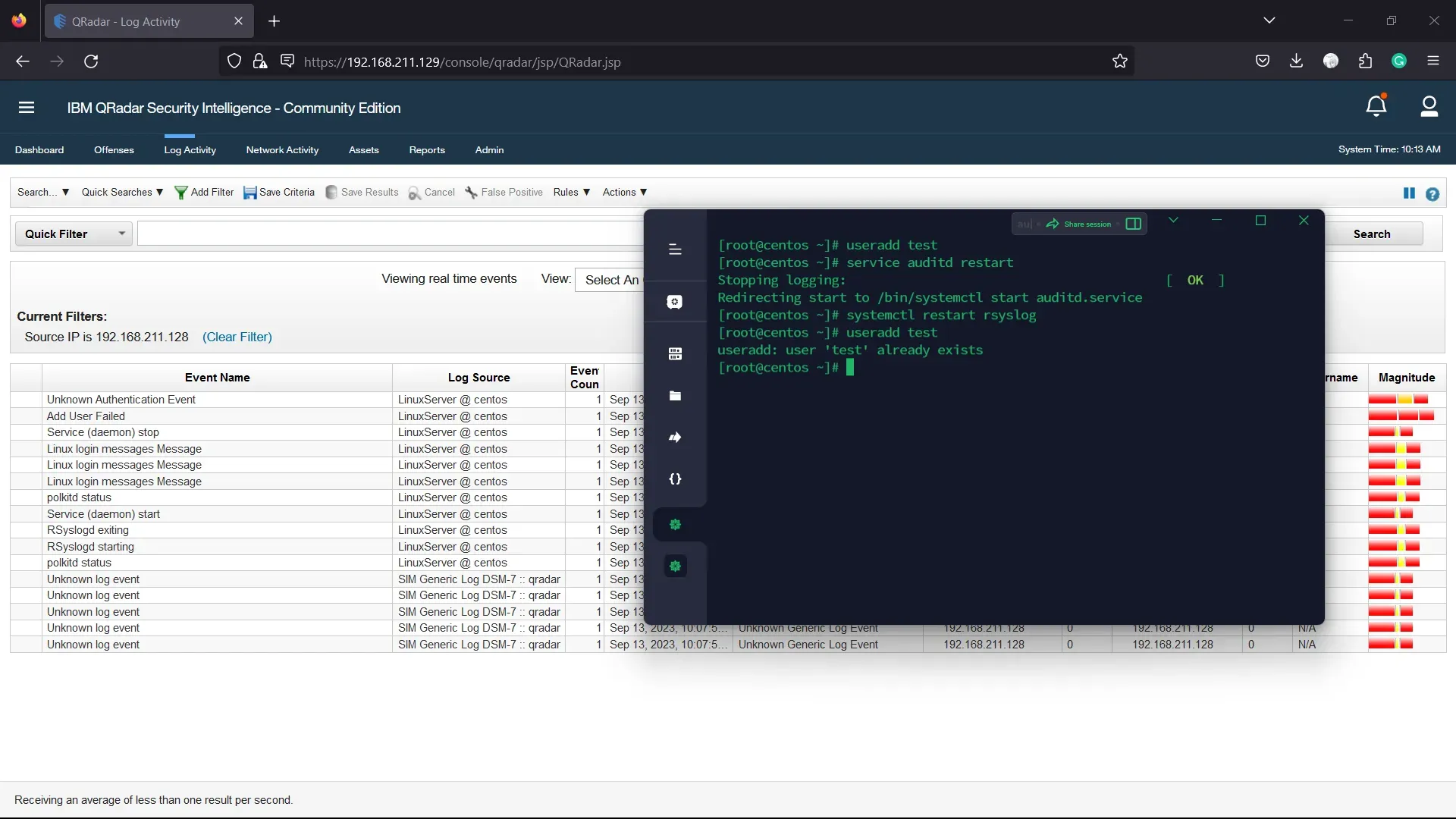
- If you get Unknown log event, you can restart the auditd and rsyslog services again
- Type
service auditd restartand press Enter to restart the auditd service - Type
systemctl restart rsyslogand press Enter to restart the rsyslog service - Type
useradd testand press Enter again to add a new user - Now you can see the activity log in the QRadar CE Dashboard
- You can also see the log in the
/var/log/audit/audit.logfile in the centos VM
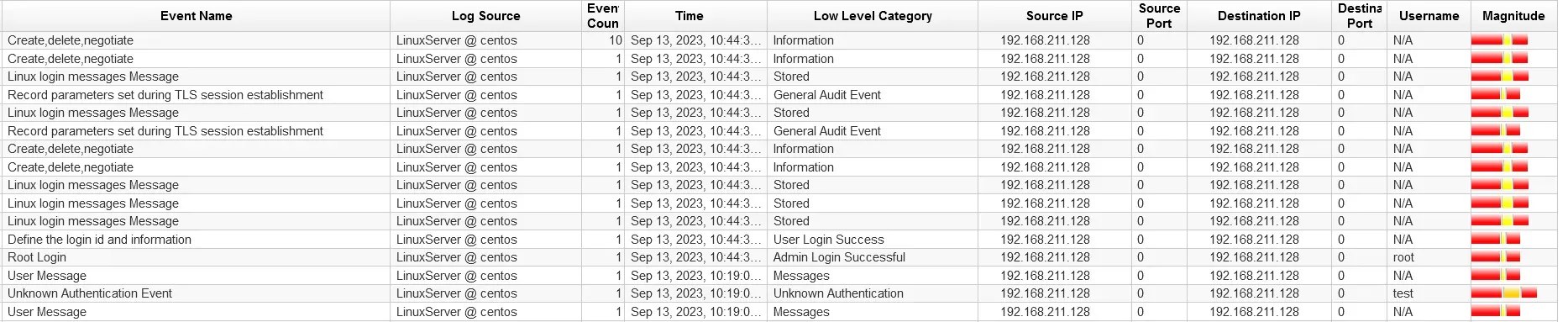
- Test deleting the user by typing
userdel testand press Enter

- Now you can see the activity log in the QRadar CE Dashboard, notice that the Event Name is contains user deletion activity.

- You can try with other activities like
usermod,userpasswd,usergroup, login and logout, change some configuration, etc.
17. Voila! You have successfully setup CentOS for IBM QRadar CE Integration with VMware Workstation
You can now explore the QRadar CE Dashboard and see the logs from your CentOS VM.
References
- https://www.ibm.com/community/qradar/ce/
- https://www.ibm.com/docs/en/SS42VS_7.4/pdf/b_siem_inst.pdf
- https://www.ibm.com/docs/en/SS42VS_7.4/pdf/b_qradar_system_notifications.pdf
- https://www.ibm.com/community/qradar/wp-content/uploads/sites/5/2020/03/QRadar_CE_Under_the_Radar_21Feb.pdf
- https://www.ibm.com/docs/en/qradar-on-cloud?topic=support-common-problems
- https://www.ibm.com/docs/en/qsip
- http://ftpmirror.your.org/pub/misc/ftp.software.ibm.com/software/security/products/qradar/documents/7.2.4/QLM/EN/b_qradar_system_notifications.pdf
- https://www.reddit.com/r/QRadar/comments/p5lfzz/best_strategy_for_monitor_linux_servers/
- Forwarding Syslogs from Linux Hosts to QRadar
- Sending Linux logs to QRadar (rsyslog.conf) by Jose Bravo
- Mastering Linux OS Integration with IBM QRadar: A Comprehensive Guide to Supercharge Your Security” by Ahmad Hassan Tariq
- Guide/learning material from Infinite Learning HCAI Program (I can’t share the material/content directly, because it’s confidential and belong to Infinite Learning and IBM Academy)