

How to Install Docker on Ubuntu 20.04 VPS
/ 7 min read
Table of Contents
Intro
Docker is an open platform for developing, shipping, and running applications. Docker enables you to separate your applications from your infrastructure so you can deliver software quickly. With Docker, you can manage your infrastructure in the same ways you manage your applications. By taking advantage of Docker’s methodologies for shipping, testing, and deploying code, you can significantly reduce the delay between writing code and running it in production.
Prerequisites
- A server running Ubuntu 20.04 or later
- A user with sudo privileges
Development Environment
- Ubuntu 20.04 LTS
- Docker version 27.1.1, build 6312585
Steps
Step 1: Installing Docker
The Docker package is included in the default Ubuntu repositories. However, it may not always be the latest version. The recommended approach is to install Docker from the official Docker repository. To do this, we will need to add the Docker repository, the GPG key, and then install the Docker package.
First, update your existing list of packages:
$ sudo apt updateInstall the required packages to allow apt to use a repository over HTTPS:
$ sudo apt install apt-transport-https ca-certificates curl software-properties-commonThen add the Docker GPG key:
$ sudo curl -fsSL https://download.docker.com/linux/ubuntu/gpg | sudo gpg --dearmor -o /usr/share/keyrings/docker-archive-keyring.gpgAdd the Docker repository to APT sources:
$ sudo echo "deb [arch=$(dpkg --print-architecture) signed-by=/usr/share/keyrings/docker-archive-keyring.gpg] https://download.docker.com/linux/ubuntu $(lsb_release -cs) stable" | sudo tee /etc/apt/sources.list.d/docker.list > /dev/nullUpdate the package database with the Docker packages from the newly added repository:
$ sudo apt updateMake sure you are about to install from the Docker repository instead of the default Ubuntu repository:
$ sudo apt-cache policy docker-ceYou should see output similar to this:
docker-ce: Installed: (none) Candidate: 5:27.1.1-1~ubuntu.20.04~focal Version table: 5:27.1.1-1~ubuntu.20.04~focal 500 500 https://download.docker.com/linux/ubuntu focal/stable amd64 Packages 5:27.1.0-1~ubuntu.20.04~focal 500 500 https://download.docker.com/linux/ubuntu focal/stable amd64 Packages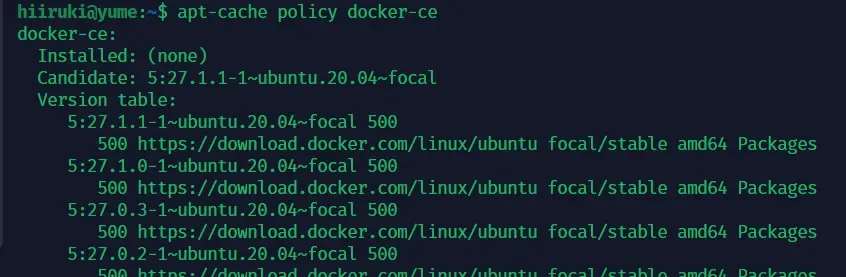
Finally, install Docker:
$ sudo apt install docker-ceOnce the installation is complete, check the version.
$ sudo docker --versionYou should see output similar to this, showing the Docker version number:
Docker version 27.1.1, build 6312585
Now check the status of the Docker service:
$ sudo systemctl status dockerYou should see output similar to this, showing that the service is active and running:
● docker.service - Docker Application Container Engine     Loaded: loaded (/lib/systemd/system/docker.service; enabled; vendor preset: enabled)     Active: active (running) since Fri 2024-08-09 20:00:54 CST; 3h 18min agoTriggeredBy: ● docker.socket       Docs: https://docs.docker.com   Main PID: 2545366 (dockerd)      Tasks: 7     Memory: 35.4M     CGroup: /system.slice/docker.service             └─2545366 /usr/bin/dockerd -H fd:// --containerd=/run/containerd/containerd.sock
Aug 09 20:00:52 yume systemd[1]: Starting Docker Application Container Engine...Aug 09 20:00:53 yume dockerd[2545366]: time="2024-08-09T20:00:53.219520920+08:00" level=info msg="Starting up"Aug 09 20:00:53 yume dockerd[2545366]: time="2024-08-09T20:00:53.233981841+08:00" level=info msg="detected 127.0.0.53 nameserver, assu>Aug 09 20:00:53 yume dockerd[2545366]: time="2024-08-09T20:00:53.587673152+08:00" level=info msg="Loading containers: start."Aug 09 20:00:54 yume dockerd[2545366]: time="2024-08-09T20:00:54.086716963+08:00" level=info msg="Loading containers: done."Aug 09 20:00:54 yume dockerd[2545366]: time="2024-08-09T20:00:54.195641146+08:00" level=warning msg="WARNING: No swap limit support"Aug 09 20:00:54 yume dockerd[2545366]: time="2024-08-09T20:00:54.196219187+08:00" level=info msg="Docker daemon" commit=cc13f95 contai>Aug 09 20:00:54 yume dockerd[2545366]: time="2024-08-09T20:00:54.196382621+08:00" level=info msg="Daemon has completed initialization"Aug 09 20:00:54 yume dockerd[2545366]: time="2024-08-09T20:00:54.322659066+08:00" level=info msg="API listen on /run/docker.sock"Aug 09 20:00:54 yume systemd[1]: Started Docker Application Container Engine.lines 1-21/21 (END)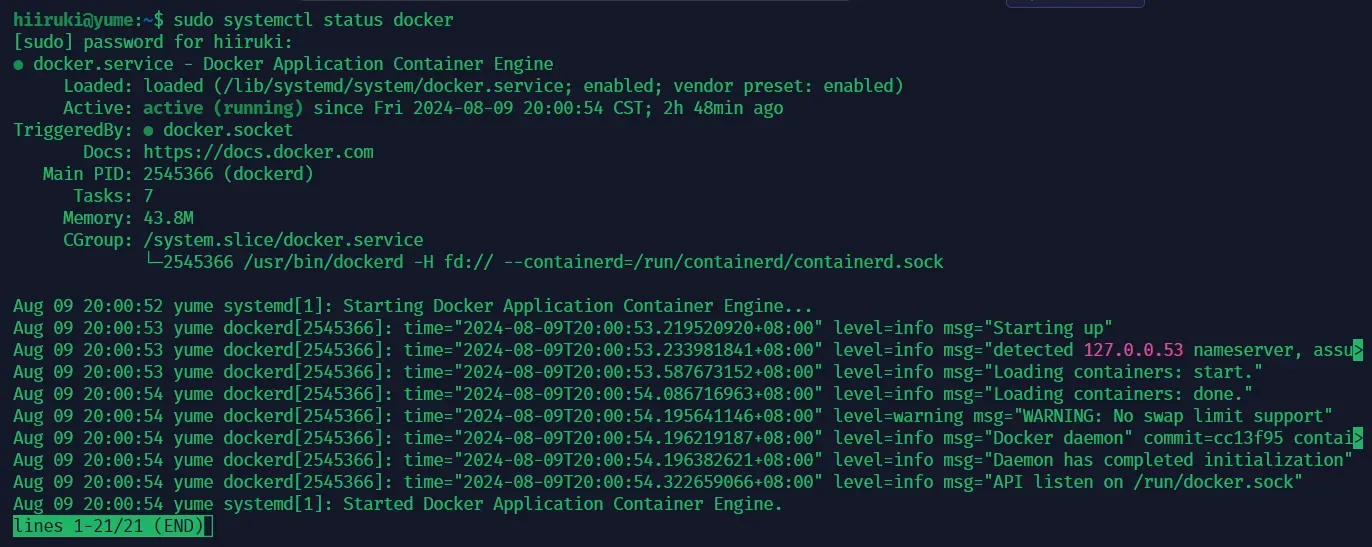
Step 2: Using Docker as a Non-Root User (Optional)
By default, Docker requires administrator privileges to run.
when you run the docker command, you will get an error like this:
docker: permission denied while trying to connect to the Docker daemon socket at unix:///var/run/docker.sock: Head "http://%2Fvar%2Frun%2Fdocker.sock/_ping": dial unix /var/run/docker.sock: connect: permission denied.See 'docker run --help'.
To avoid having to use sudo with every Docker command, add your user to the Docker group:
$ sudo usermod -aG docker ${USER}Then logout and log back in so that your group membership is re-evaluated. or you can run the following command:
$ su - ${USER}You will be prompted to enter your user’s password to continue.
or apply the new group membership by running:
$ newgrp dockeror you can reboot your system:
$ sudo rebootCheck that your user is now added to the Docker group by running:
$ groupsor
$ id -nGYou should see docker in the list of groups for your user:
Output:
hiiruki sudo docker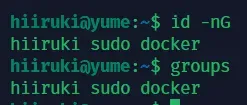
To add another user to the Docker group that you’re not currently logged in as, run the following command:
$ sudo usermod -aG docker `username`Step 3: Testing Docker
Now that Docker is installed, let’s run a simple container to test it.
Run the following command:
$ docker run hello-worldIf it works, you will see the following output:
hiiruki@yume:~$ docker run hello-worldUnable to find image 'hello-world:latest' locallylatest: Pulling from library/hello-worldc1ec31eb5944: Pull completeDigest: sha256:1408fec50309afee38f3535383f5b09419e6dc0925bc69891e79d84cc4cdcec6Status: Downloaded newer image for hello-world:latest
Hello from Docker!This message shows that your installation appears to be working correctly.
To generate this message, Docker took the following steps: 1. The Docker client contacted the Docker daemon. 2. The Docker daemon pulled the "hello-world" image from the Docker Hub.    (amd64) 3. The Docker daemon created a new container from that image which runs the    executable that produces the output you are currently reading. 4. The Docker daemon streamed that output to the Docker client, which sent it    to your terminal.
To try something more ambitious, you can run an Ubuntu container with: $ docker run -it ubuntu bash
Share images, automate workflows, and more with a free Docker ID: https://hub.docker.com/
For more examples and ideas, visit: https://docs.docker.com/get-started/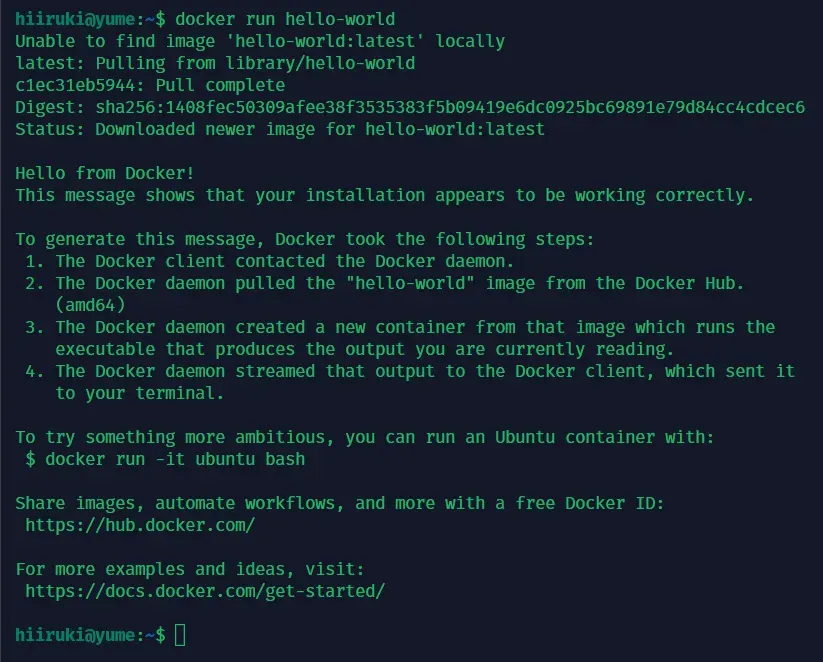
Step 4: Docker Compose
Docker Compose is a tool for defining and running multi-container Docker applications. With Compose, you use a YAML file to configure your application’s services. Then, with a single command, you create and start all the services from your configuration.
Docker Compose is already included in the Docker package that we installed earlier. To check the version, run:
$ docker compose versionYou should see output similar to this, showing the Docker Compose version number:
$ Docker Compose version v2.29.1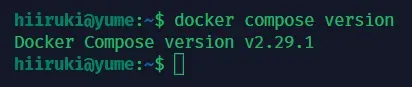
Operation Check
Now, let’s start a web server with nginx to check the operation. Prepare three files: Dockerfile, compose.yaml, and src/index.html
The project structure should look like this:
composetest/├── Dockerfile├── compose.yaml└── src └── index.htmlBefore creating the files, create the composetest directory and navigate to it:
$ mkdir composetest$ cd composetestDockerfile
The image we will use is from the nginx official image nginx:1 .26.1-alpine-slim
Create a file named Dockerfile
$ nano Dockerfileand add the following content:
FROM nginx:1.26.1-alpine-slimCOPY ./src/index.html /usr/share/nginx/htmlcompose.yaml
Compose simplifies the control of your entire application stack, making it easy to manage services, networks, and volumes in a single, comprehensible YAML configuration file.
Create a file called compose.yaml in your project directory
$ nano compose.yamland paste the following:
services: nginx: build: ./ image: web-server:1.0.0 container_name: web-server ports: - 1337:80Explanation:
This compose.yaml file defines a single service named nginx. Docker Compose will build a Docker image from the current directory and tag it as web-server:1.0.0. It then creates a container named web-server, which exposes port 80 of the container to port 1337 on the host machine.
src/index.html
Create a directory named src and navigate to it:
$ mkdir src$ cd srccreate a file named index.html:
$ nano index.htmlThis is the page that will displayed when you access the web address. For the tutorial, I will use a simple HTML file:
<!DOCTYPE html><html><head> <title>Docker Compose Test</title></head><body> <h1>Hello World!</h1>
<h2>This file is served by nginx running in a Docker container.</h2></body></html>Build and Run
Now that you have created the necessary files, you can build and run the Docker container using Docker Compose.
Navigate back to the composetest directory:
$ cd ..Run the following command to build the Docker image and start the container:
$ docker compose up -d --buildYou should see output similar to this:
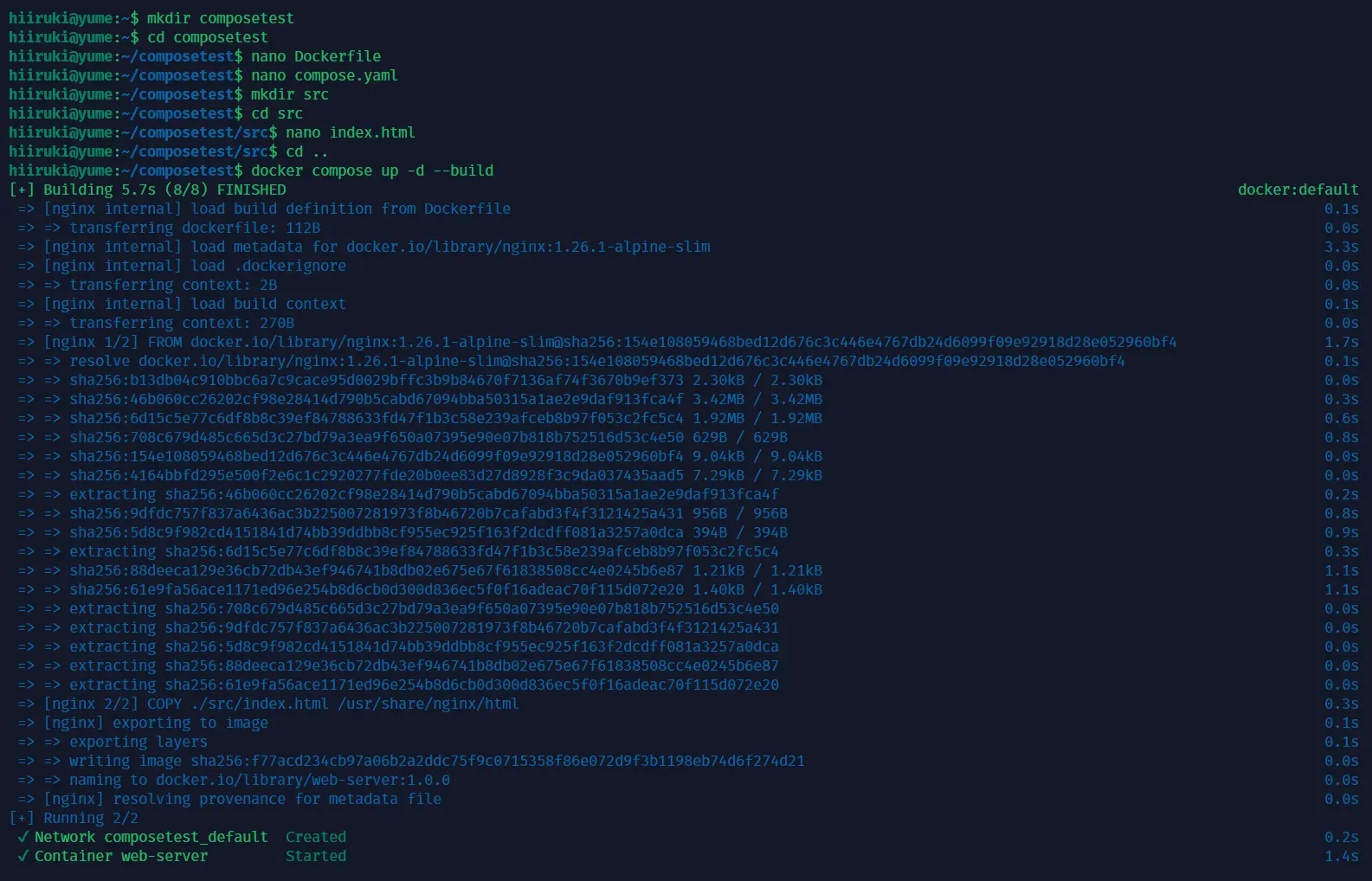
To check the status of the container, run:
$ docker psYou should see output similar to this, showing that the container is running:
CONTAINER ID IMAGE COMMAND CREATED STATUS PORTS NAMESf3c369713e9f web-server:1.0.0 "/docker-entrypoint.…" 12 seconds ago Up 11 seconds 0.0.0.0:1337->80/tcp, :::1337->80/tcp web-server
Now, open your web browser and navigate to http://your_server_ip:port. You should see the index.html page that you created earlier.
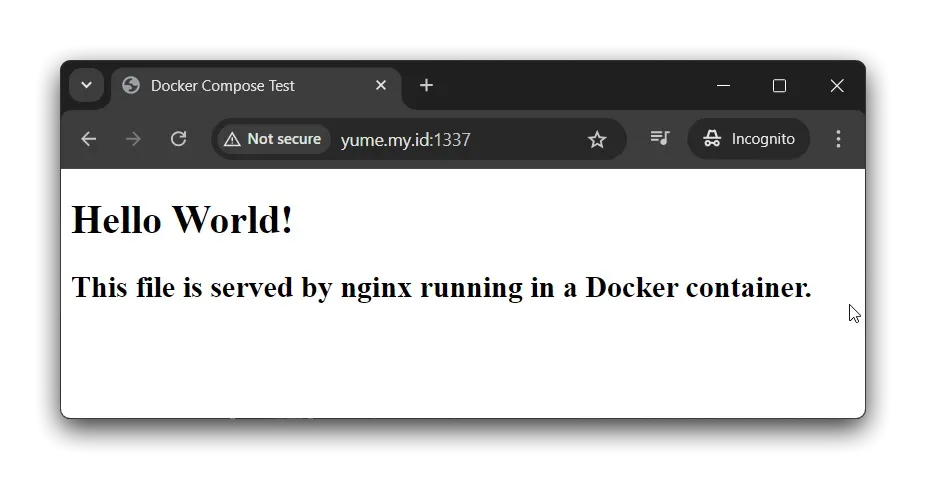
{{< figure src=”./images/containerize.webp” caption=“Containerize all the things!” align=“center” alt=“Containerize all the things!” >}}