Port Forwarding with ngrok
/ 3 min read
Table of Contents
Introduction
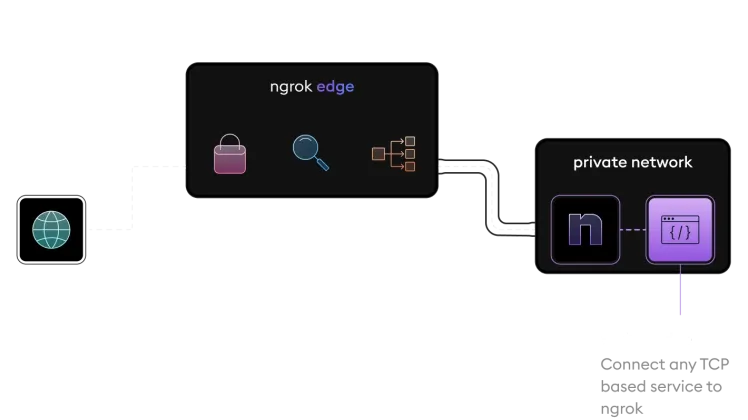
Port forwarding is a technique that allows external devices to access a device that is behind a firewall, NAT, or private network. It is commonly used to make a local server accessible from the internet.
ngrok is a tool that creates a secure tunnel to your local server. It is free to use, but you can also buy a paid plan to get more features. ngrok is available for Windows, macOS, Linux, Docker, FreeBSD, etc.
Steps
1. Download ngrok
Download ngrok from the official website.
You can also use wget to download ngrok directly to your server. This is useful if you want to use ngrok on a server that does not have a GUI.
{{< figure src=”./images/step1.webp” caption=“Install wget on CentOS” align=“center” alt=“Install wget on CentOS” >}}
Download ngrok with this command:
$ wget https://bin.equinox.io/c/bNyj1mQVY4c/ngrok-v3-stable-linux-amd64.tgz --no-check-certificate--no-check-certificate is used to bypass the SSL certificate check. This is useful if you are using a self-signed certificate.
{{< figure src=”./images/step1-2.webp” caption=“ngrok download” align=“center” alt=“ngrok download” >}}
2. Extract ngrok
Extract it to a directory of your choice. I will use /usr/local/bin in this example.
$ tar -xzf ngrok-v3-stable-linux-amd64.tgz -C /usr/local/bin
That command will extract the ngrok binary to /usr/local/bin. You can check if it is installed correctly by running ngrok --version

3. Create an account
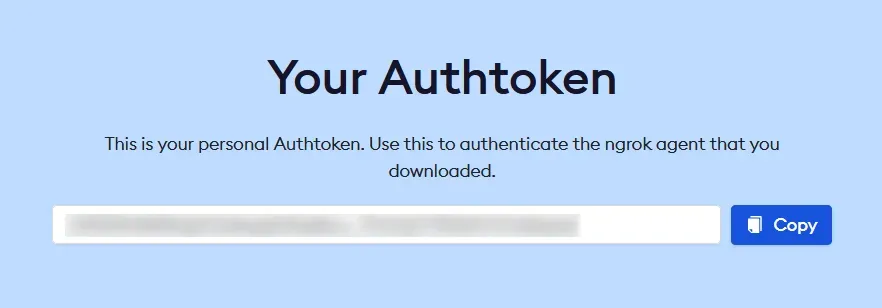
Create an account on ngrok and get your auth token from the dashboard.
4. Connect your account
Connect your account by running ngrok authtoken <your_auth_token>. Replace <your_auth_token> with your auth token.
or
ngrok config add-authtoken <your_auth_token>

5. Start ngrok
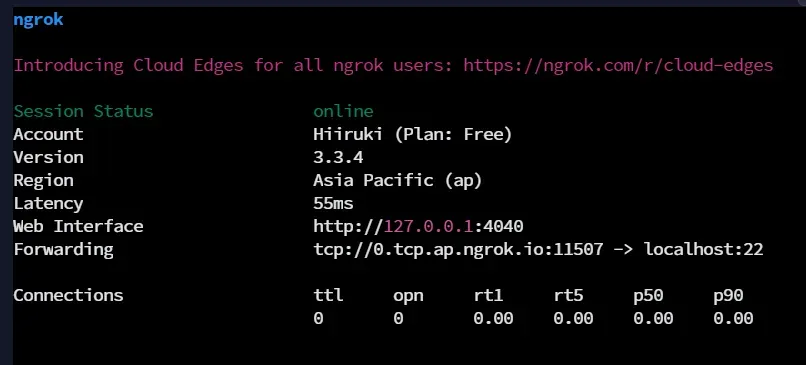
In this example, I want to make my local SSH server accessible from the internet. So, I will use port 22 for this example.
Run ngrok tcp 22 to start ngrok.
6. Connect to your server
Connect to your server with the ngrok URL.
Domain: 0.tcp.ap.ngrok.io
Port: 11507
So the full command will be ssh username@0.tcp.ap.ngrok.io -p 11507
{{< figure src=”./images/step6.webp” caption=“Remote SSH the CentOS 7 using Ubuntu 22.04.2 LTS (WSL) with ngrok” align=“center” alt=“Install wget on CentOS” >}}
Conclusion
That’s it! Now you can make your local server accessible from the internet with ngrok. You can also use ngrok to make your local website accessible from the internet. Just use the right tunnel type for your server.
For example, if you want to make your local website accessible from the internet, you can use ngrok http 80 to start ngrok. Then you can access your website with the ngrok URL. You can also use ngrok to make your local SSH server accessible from the internet. Just use ngrok tcp 22 to start ngrok. Then you can connect to your server with the ngrok URL.
Further reading: ngrok Tunnels