
How to Change Username on Linux
/ 3 min read

Table of Contents
Intro
I was using the Kali Linux virtual machine edition, specifically the pre-built version for VMware and VirtualBox. In this version, the default username is “kali” since it’s pre-configured, and we don’t get to choose the username during installation. I found the default “kali” username a bit boring, so I wanted to change it to something I preferred. If you feel the same way, this guide is for you. Let’s get started!
Steps
1. Change to the root user
$ sudo -iafter that we can change the root password by typing:
$ passwdtype your new root password and confirm it.
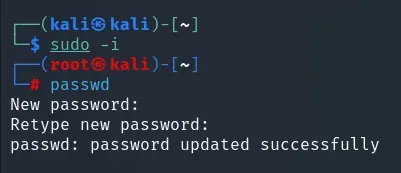
2. Logout and switch to root user or restart
You can choose Log out, Switch user, or restart. I choose to restart because it’s faster and it’s a virtual machine. For server or production environment, you can choose to log out or switch user.
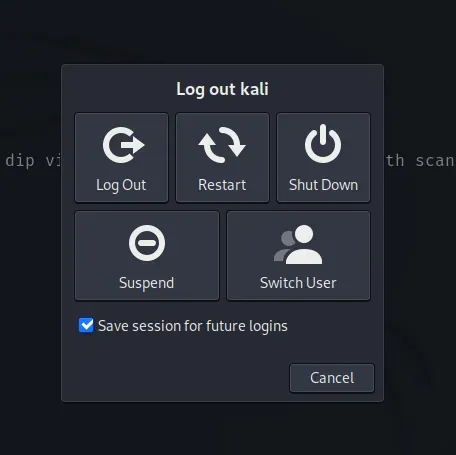
Use the root credentials that we already set in step 1.
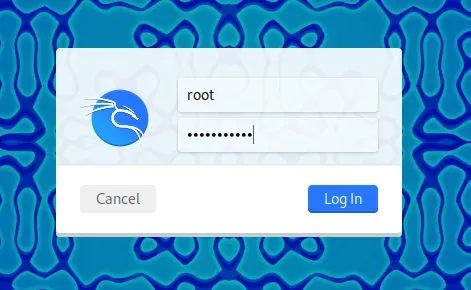
3. Change the username as well as the home directory and the group
Make sure you are logged in as root user.
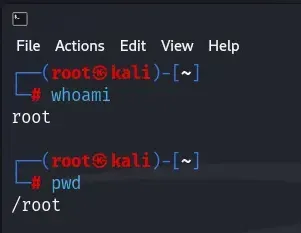
Then change the username using the following command:
$ sudo usermod -l new_username -d /home/new_username -m old_usernameExample:

Explanation:
-lis to change the login name-dis to change the home directory-mis to move the content of the old home directory to the new home directory
Change the group name using the following command:
$ groupmod -n new_username old_usernameExample:

Explanation:
-nis to change the name of the group
Create symbolic link for the old home directory to the new home directory
Type the following command:
$ ln -s /home/new_username /home/old_usernameExample:

Explanation:
-sis to create a symbolic link
(Optional) Change the user finger information (user database information). In this case I just want to change the full name.
$ chfn -f "New Full Name" new_usernameExample:

Explanation:
-fis to change the full name
4. Logout and switch to the new username or restart
Input your new username and the old password, which is kali in my case.
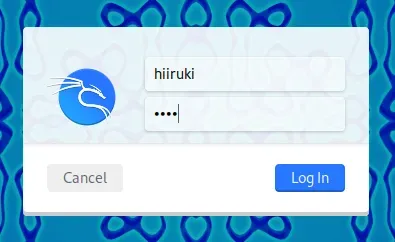
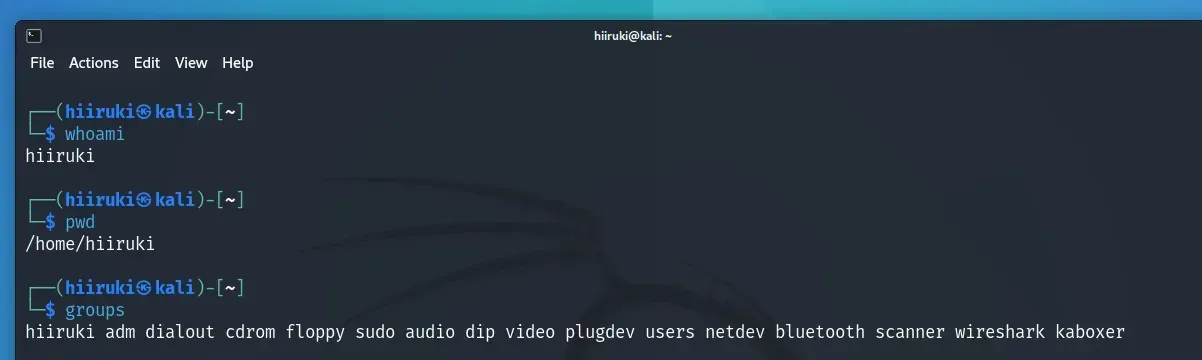
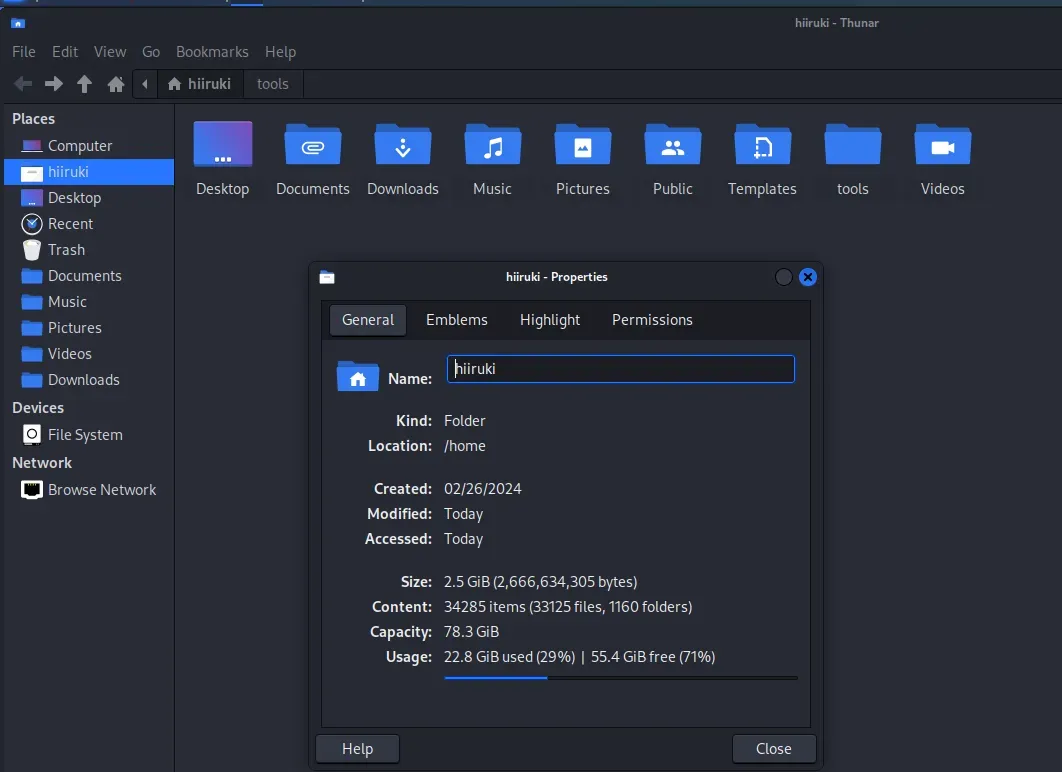
Check the home directory and the group name. Make sure they are correct.
My data is still there as expected.
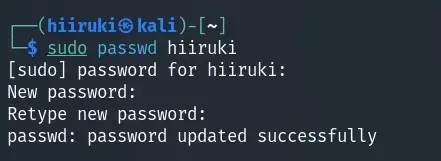
Then change the password for the new username.
$ sudo passwd new_usernameType your new password and confirm it.
Summary
Everything is done. You have successfully changed the username as well as the home directory and the group. You have also created a symbolic link for the old home directory to the new home directory. You have also changed the user finger information and the password. Congratulations!